

Sabaq empowers Waqifeen-e-Nau to confidently learn and memorize their syllabus. Stay motivated and on track with interactive flashcards, quizzes, audio guides, a match game, and a memorization counter. Track your progress and earn Sabaq Coins as you master every lesson.
Getting Started
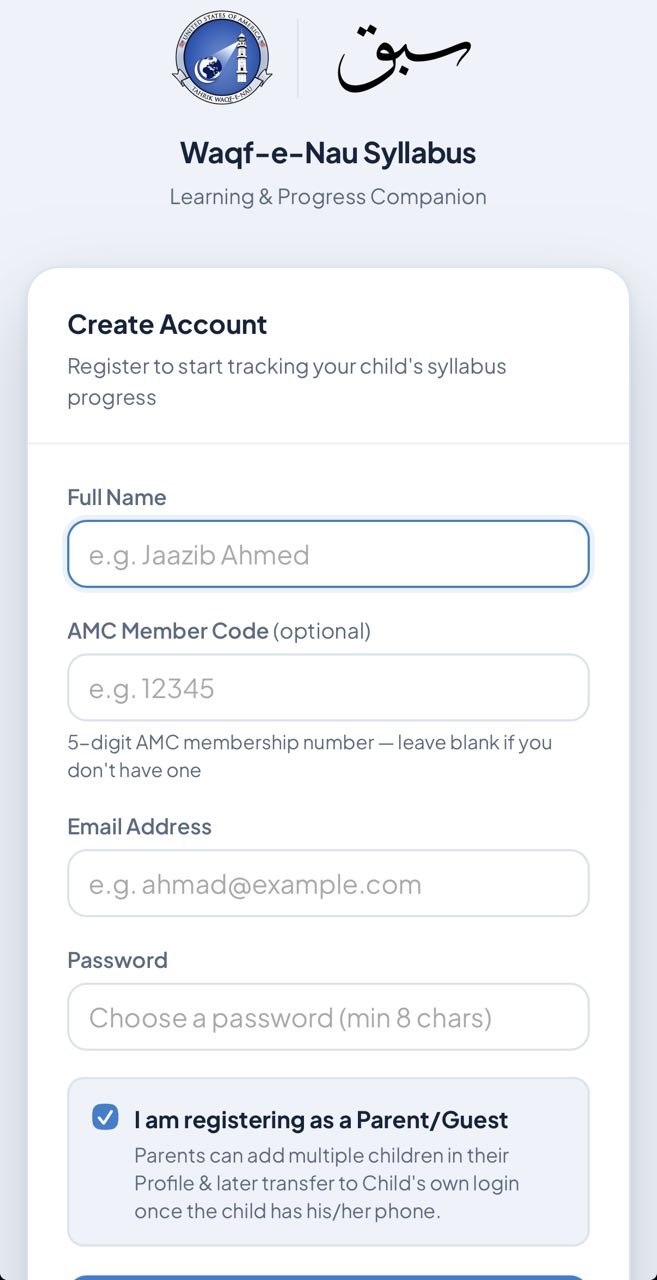
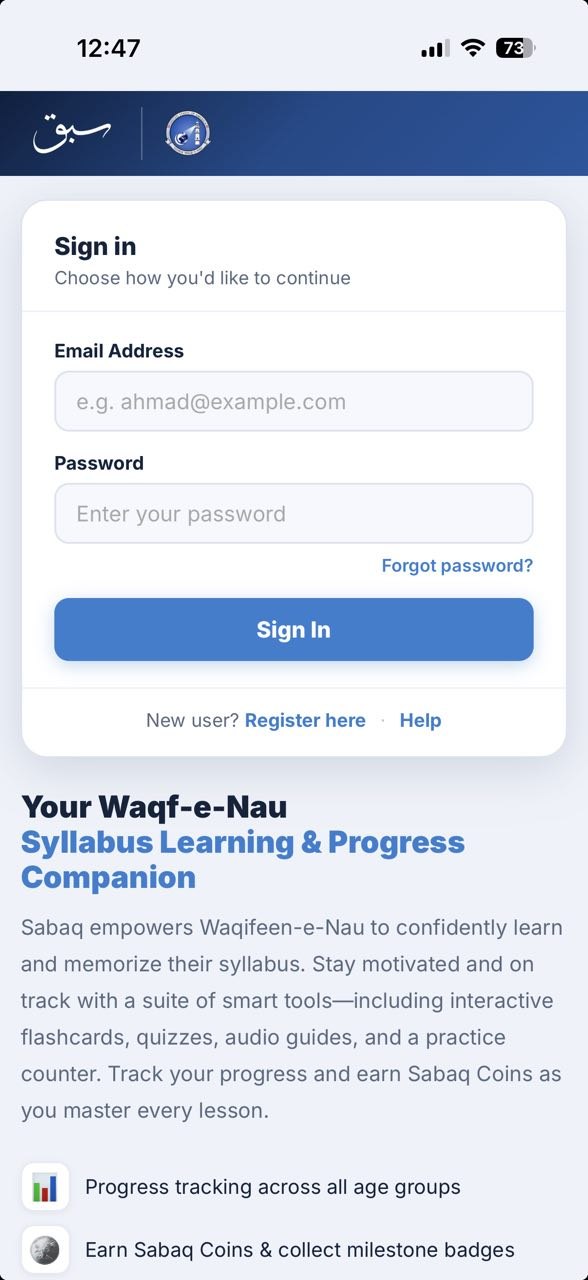
Download Sabaq from Google Play for Android phones and tablets or the App Store for iPhone and iPad, or visit sabaq.waqfenau.us in your browser. New members register first; existing members sign in with their email address and password.
-
1Tap Register here on the login page to create your account. Enter your Full Name, Email Address, and a Password (minimum 8 characters). Your AMC Member Code is optional — enter it if you have one, or leave it blank.
-
2If you are a parent or guest who wants to track children separately, check the "I am registering as a Parent/Guest" box. You can add child profiles later from the Home screen (or your initial → Manage Children).
-
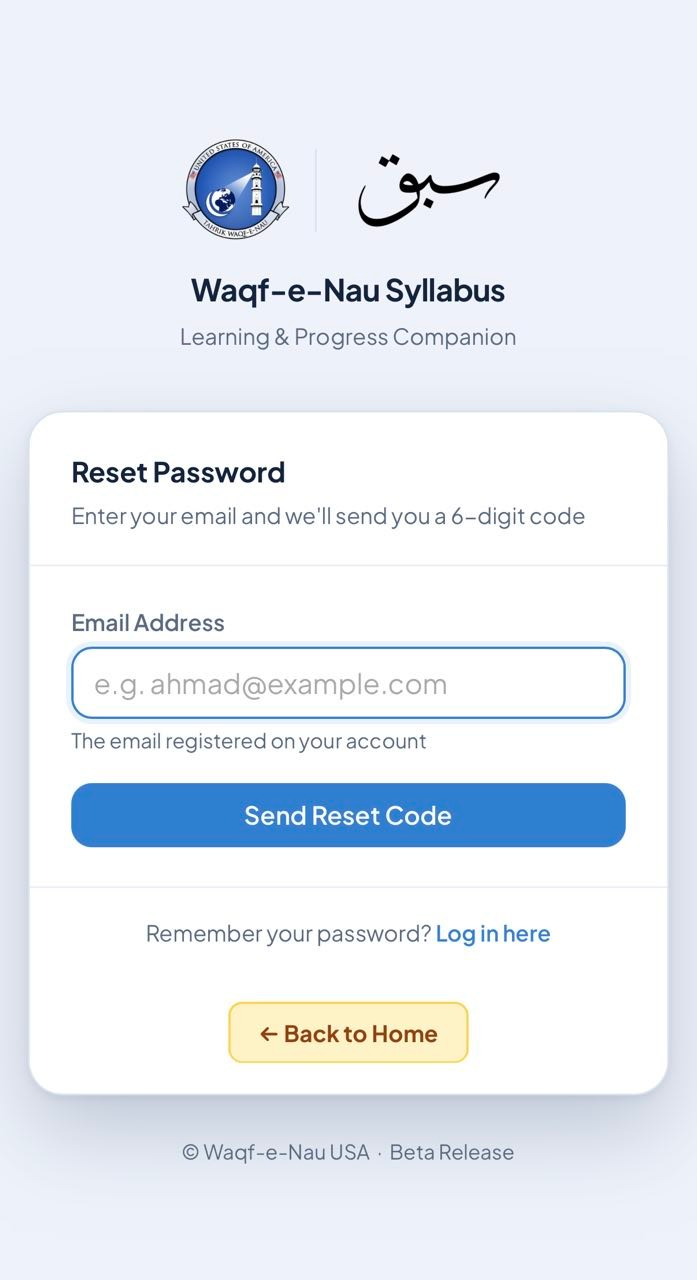
3After registering, enter the code we email you to confirm your address — you're then signed in automatically. Next time, sign in with your Email Address and password. If you forget your password, tap Forgot password? on the login page, enter your email, and you will receive a 6-digit reset code by email.
-
4You are taken to your Home Page where you can see your progress, add children, and start learning.
Your Home Page
After signing in you see the Home screen. The four tabs at the bottom depend on your account: parents see Home, Tasks, Resources and Zikr; children and students see Home, Syllabus, Progress and Zikr.
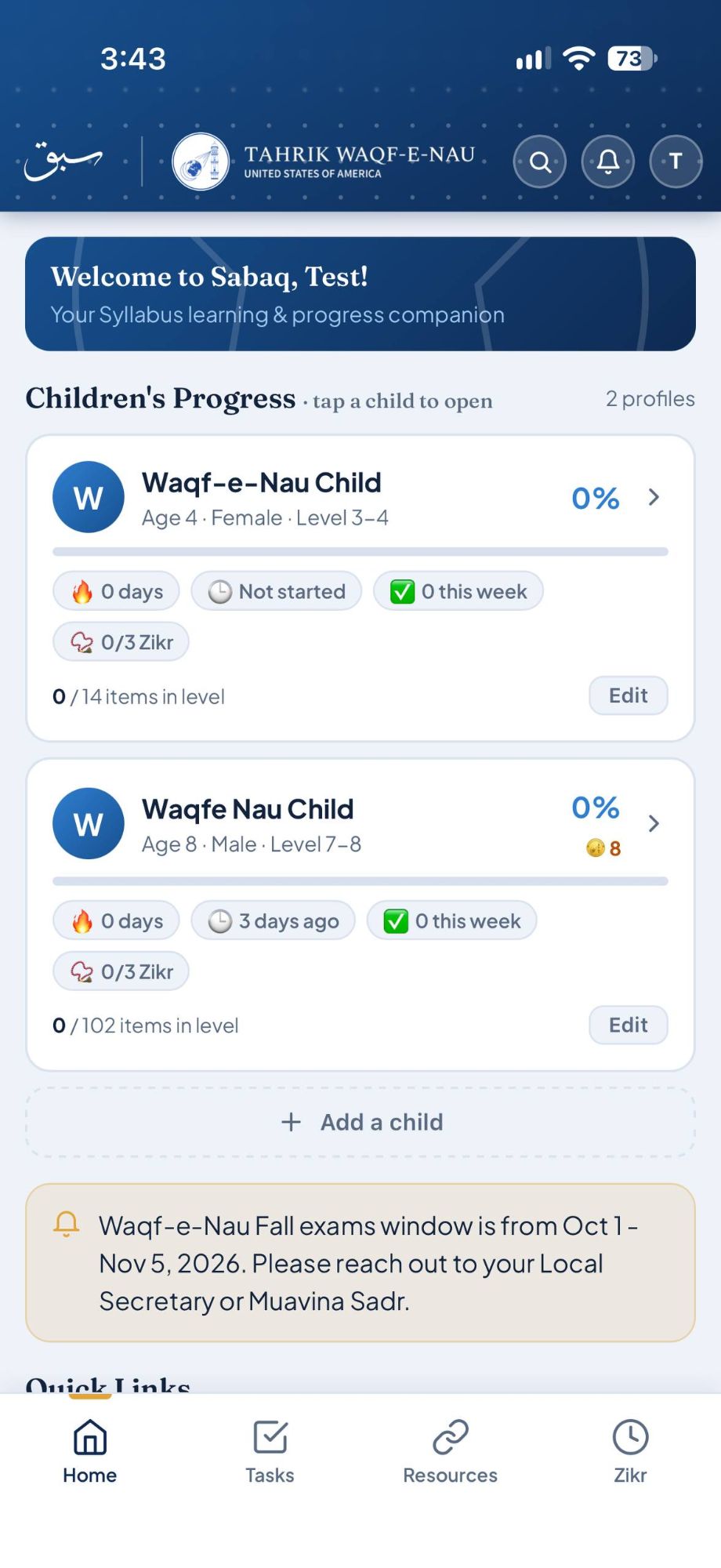
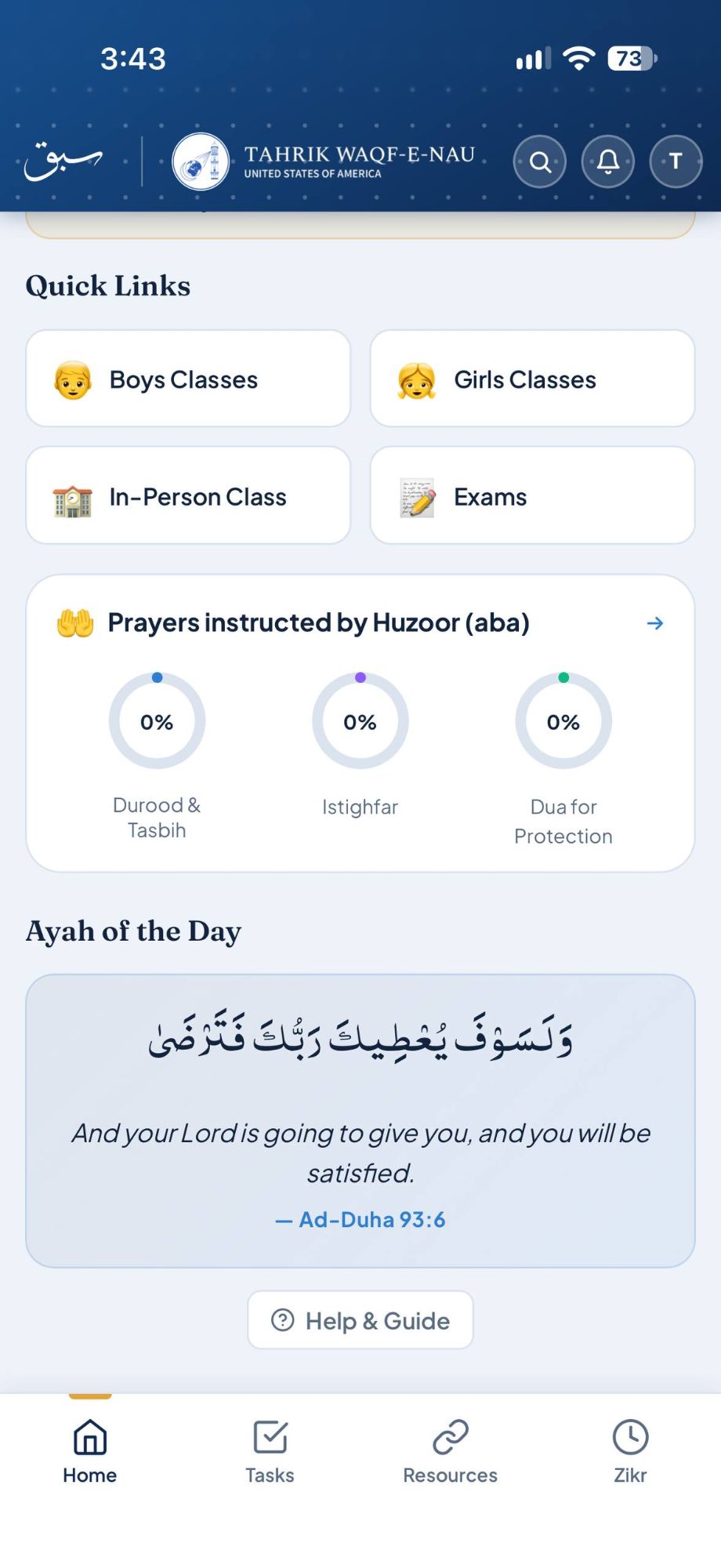
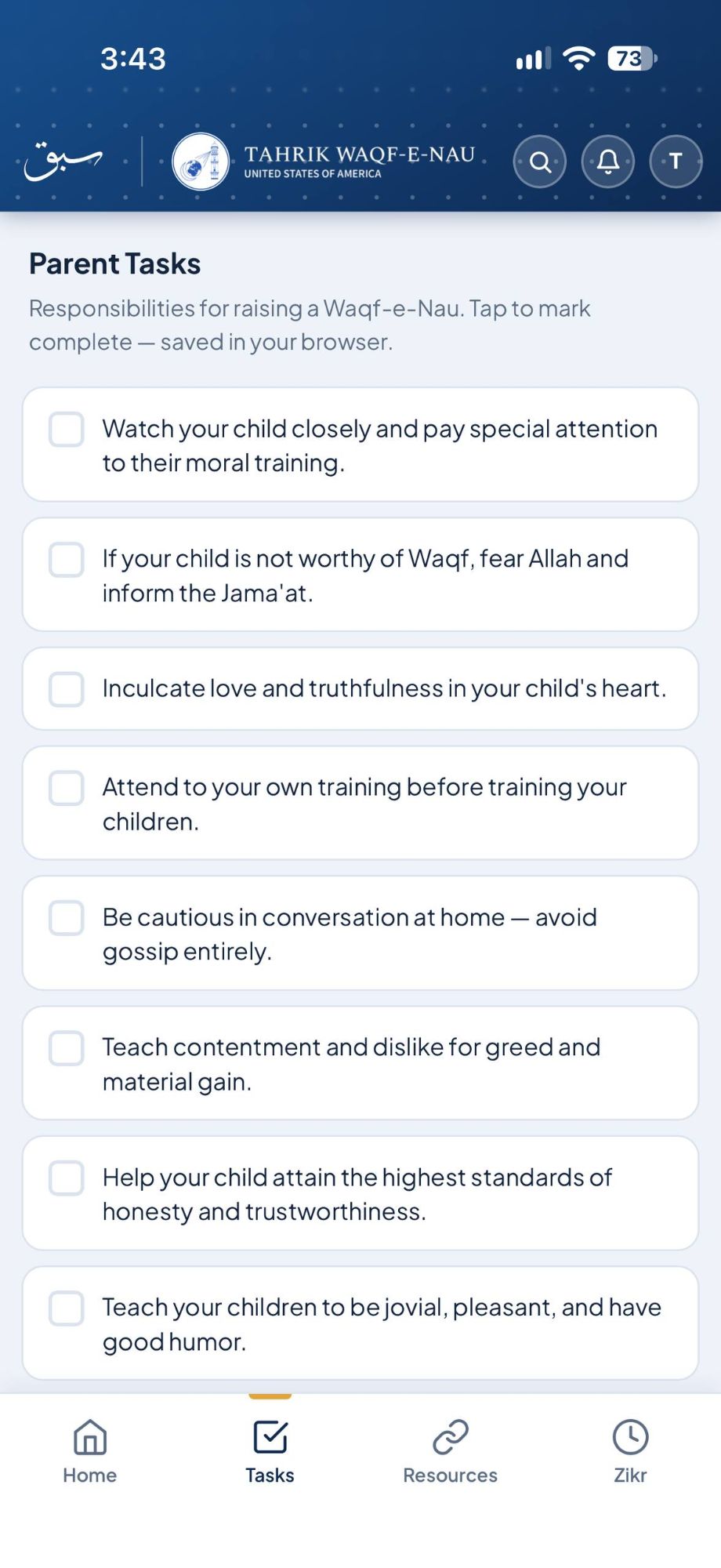
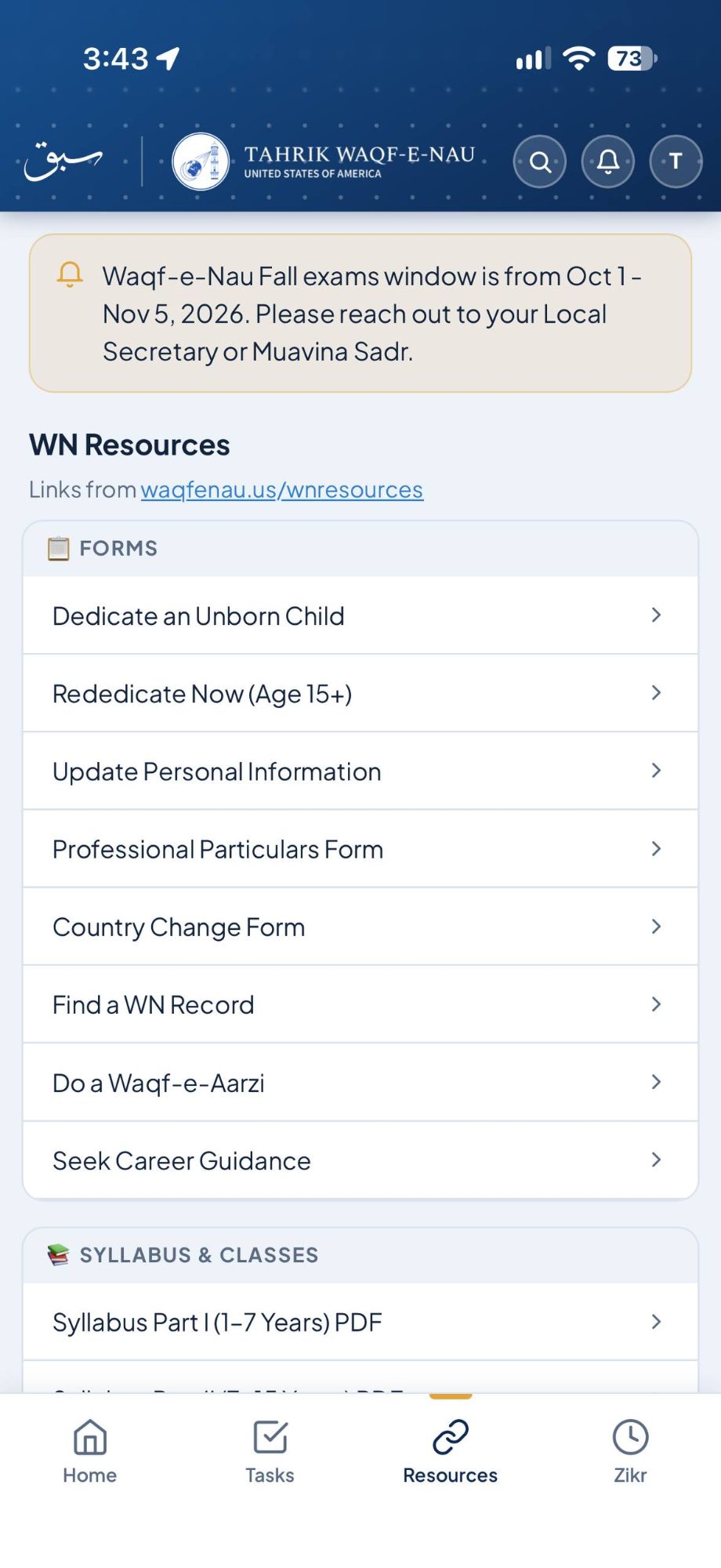
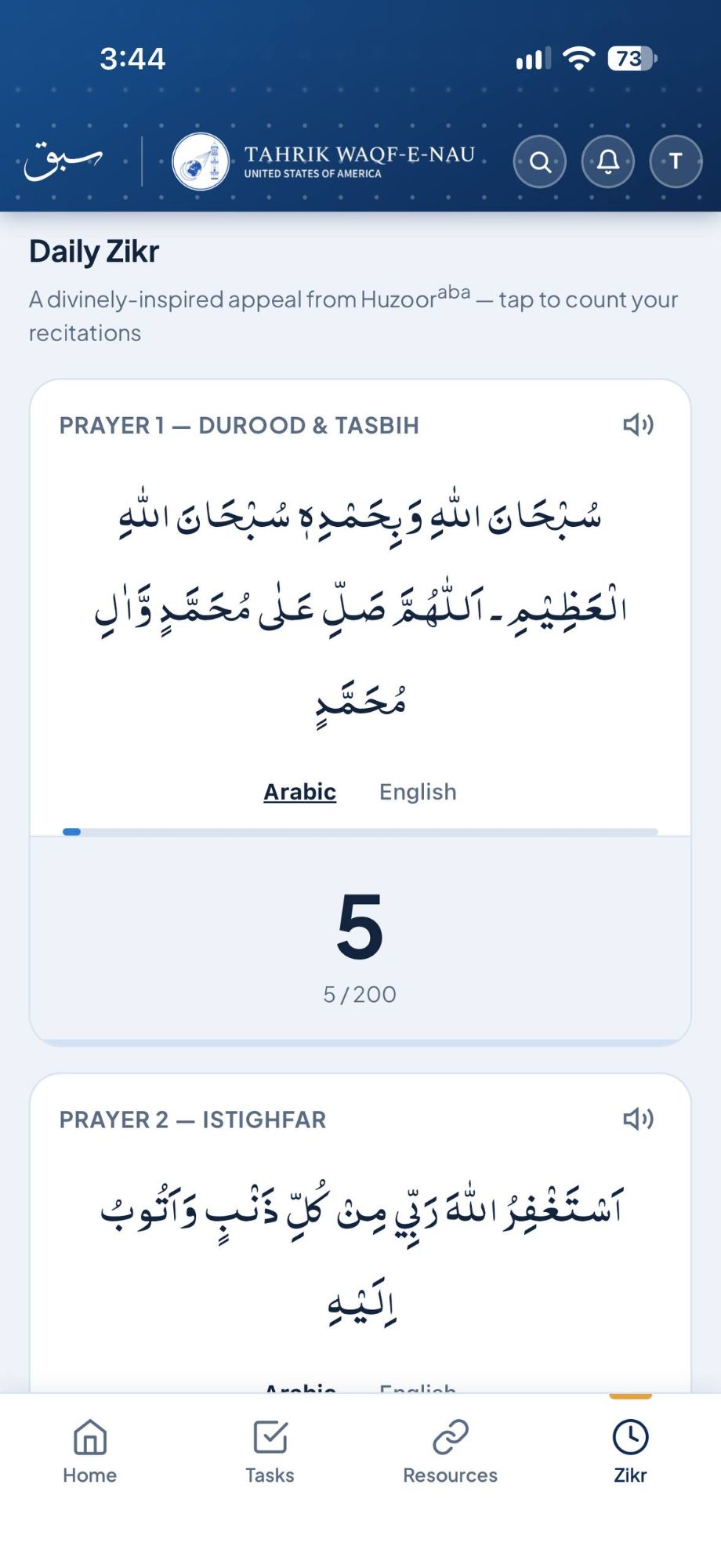
Top right buttons and menu — 🔍 Search, the 🔔 bell and the avatar menu are explained in Avatar / Right Menu.
Parent Home
Parent tabs
Children and students see a different Home — see Child's Home.
Adding a Child Profile
Each child gets their own independent progress, completely separate from the parent account. Parents can switch between their own view and any child's view at any time.
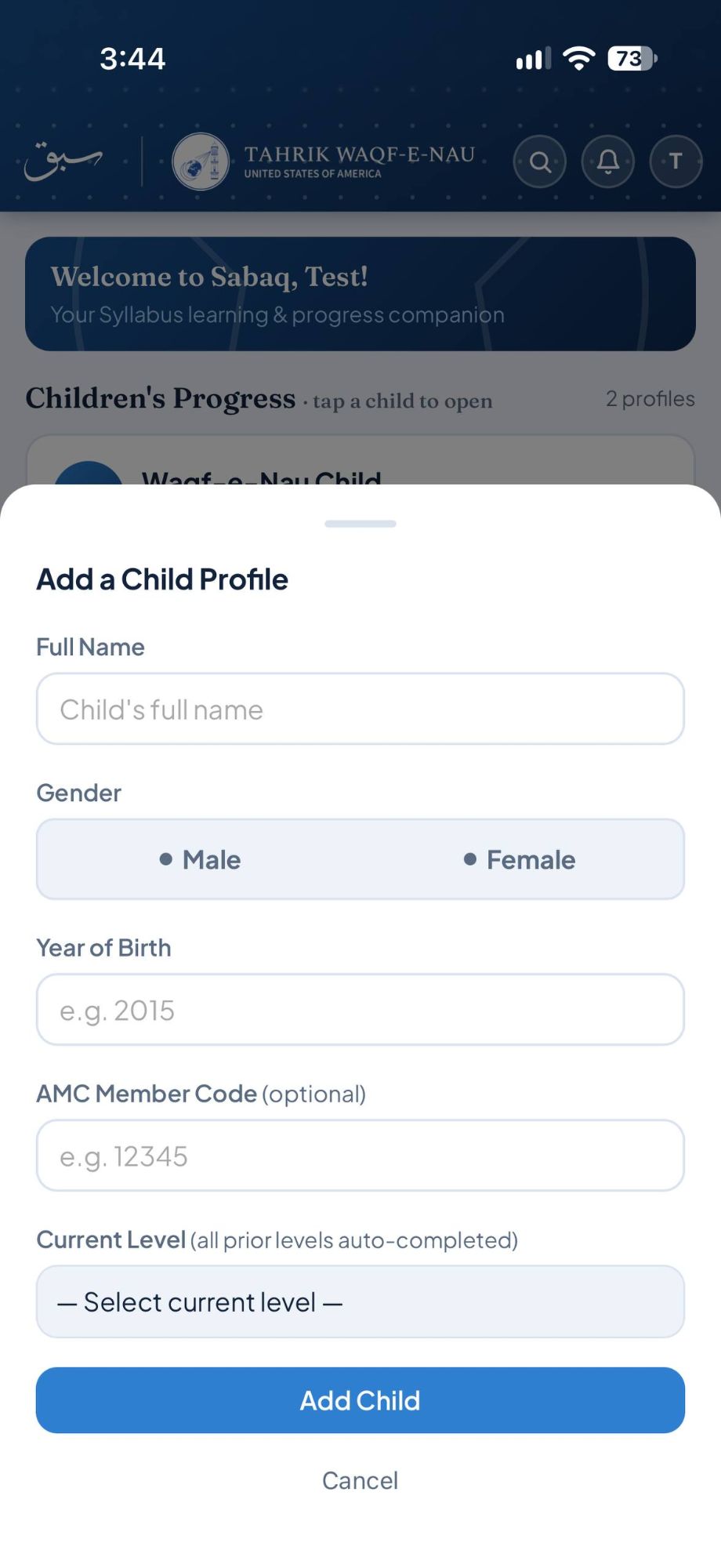
-
1On the Home screen tap + Add a child (or tap your initial → Manage Children).
-
2Enter the child's Full Name, choose Male or Female, and enter their Year of Birth. The AMC Member Code is optional — if you add it, it must be 5 digits and not already used by another account.
-
3Choose their Current Level — the age group they are working on now. Every level before it is marked complete automatically, so their progress starts in the right place. (If the child is older than the last level, all levels are marked complete.)
-
4Tap Add Child. Their card now appears on the Home screen.
-
5Tap the child's card on the Home screen to switch to their account — their initial now shows at the top right. To return to your own account, tap the orange ← switch back button at the top of Home, or their initial → Switch Back to Parent.
At a glance: each child's card on Home shows their level progress and coins, plus 🔥 streak, 🕒 when they were last active, ✅ items ticked this week in their level, and 📿 today's Zikr.
Parent Tasks (the Tasks tab) are saved to your account, so your ticks follow you to any phone or computer.
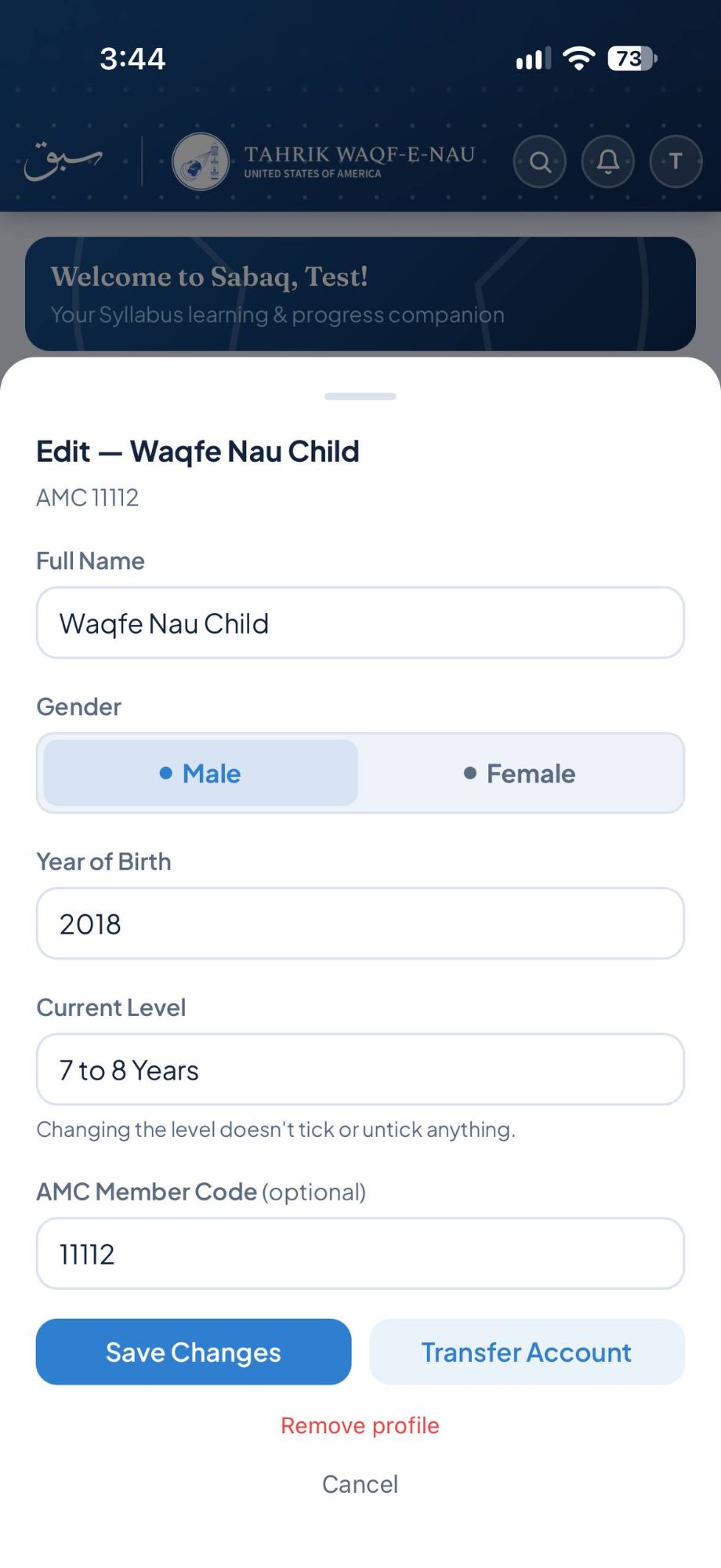
Edit a Child
Tap Edit on the child's card on Home (you must be in your own parent account).
Child's Home
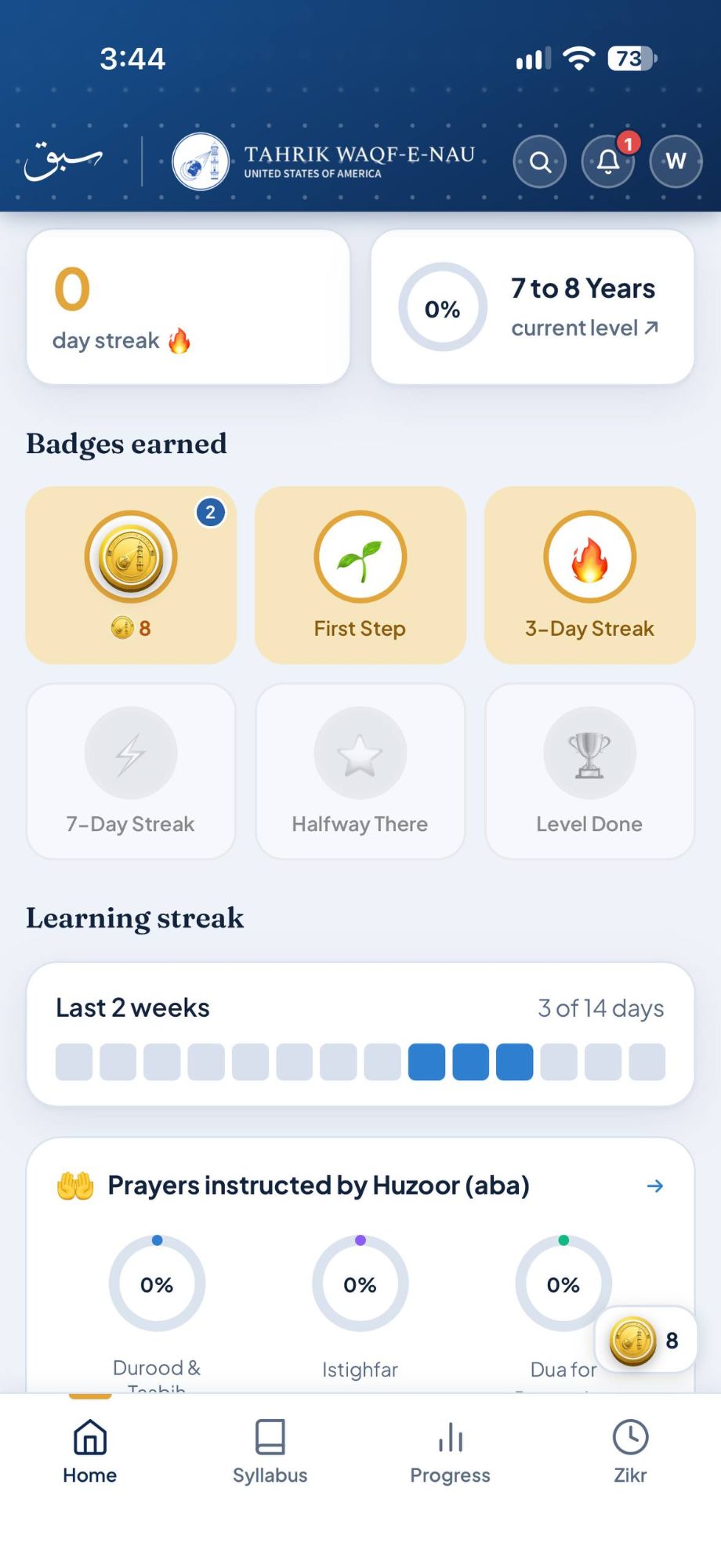
When you open a child's profile (or a child or student signs in to their own account), Home shows their learning. The four tabs at the bottom are Home, Syllabus, Progress and Zikr. Students who signed up themselves see the same Home, without the switch-back button.
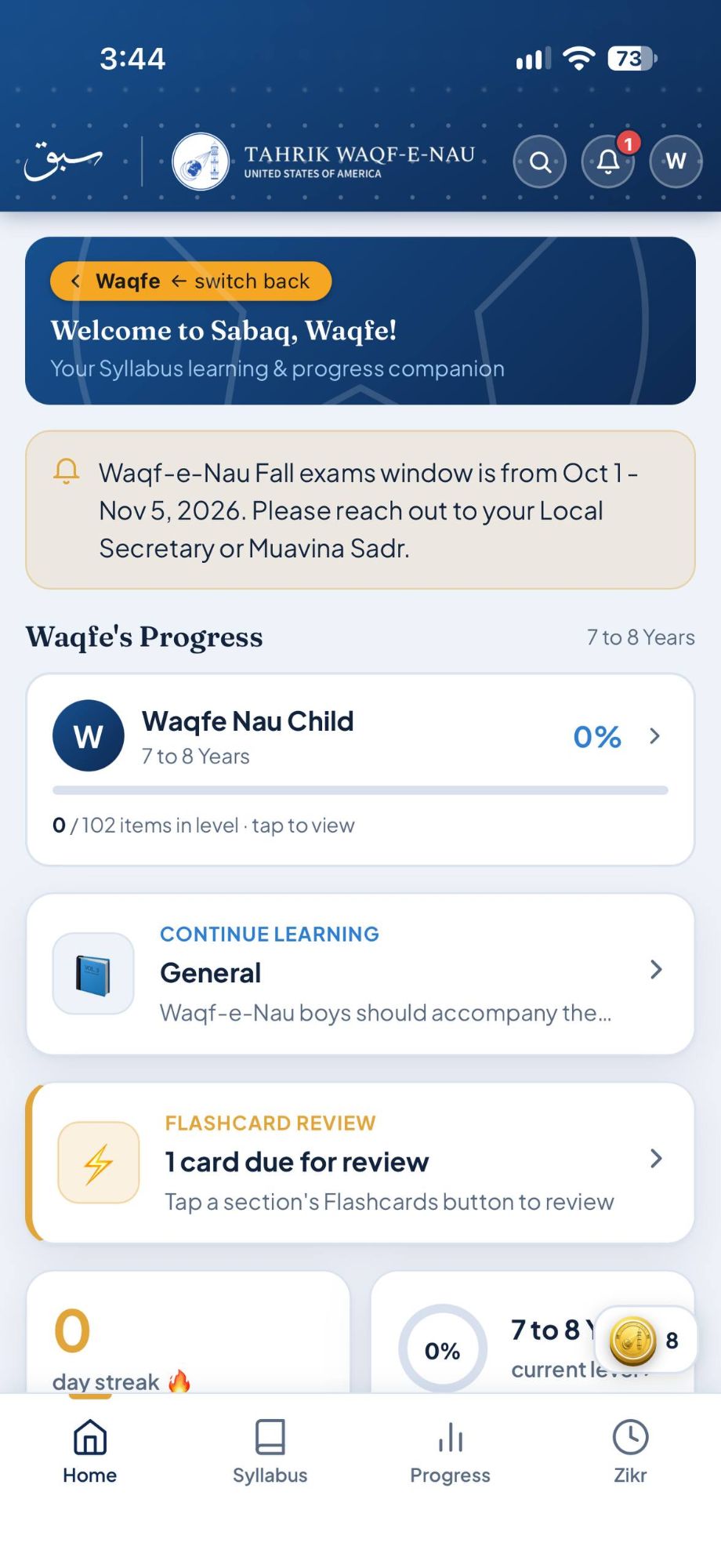
Top right buttons and menu — 🔍 Search, the 🔔 bell and the avatar menu are explained in Avatar / Right Menu.
On the Home screen
Syllabus & Item Buttons
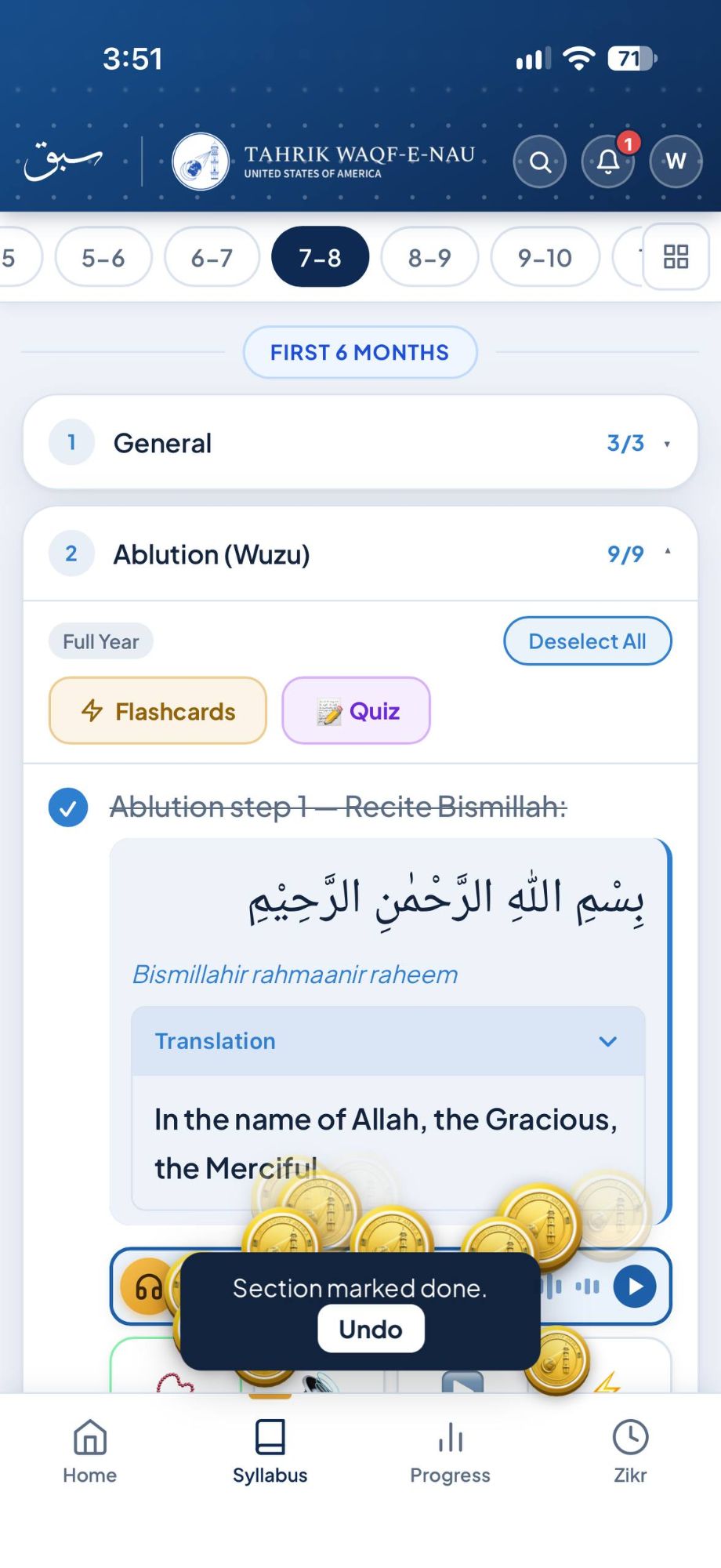
The Syllabus tab shows the syllabus organised by age level and sections. It opens on your current level.
Your Current Level
The red label (e.g. 7 to 8 Years) names the level you are looking at. On your own level it says ✔ Your Current Level with how many items are ticked (e.g. 9/63). Your current level is the one your Home page, Continue Learning and your Sabaq Coins follow.
Age Levels (top bar)
A content item
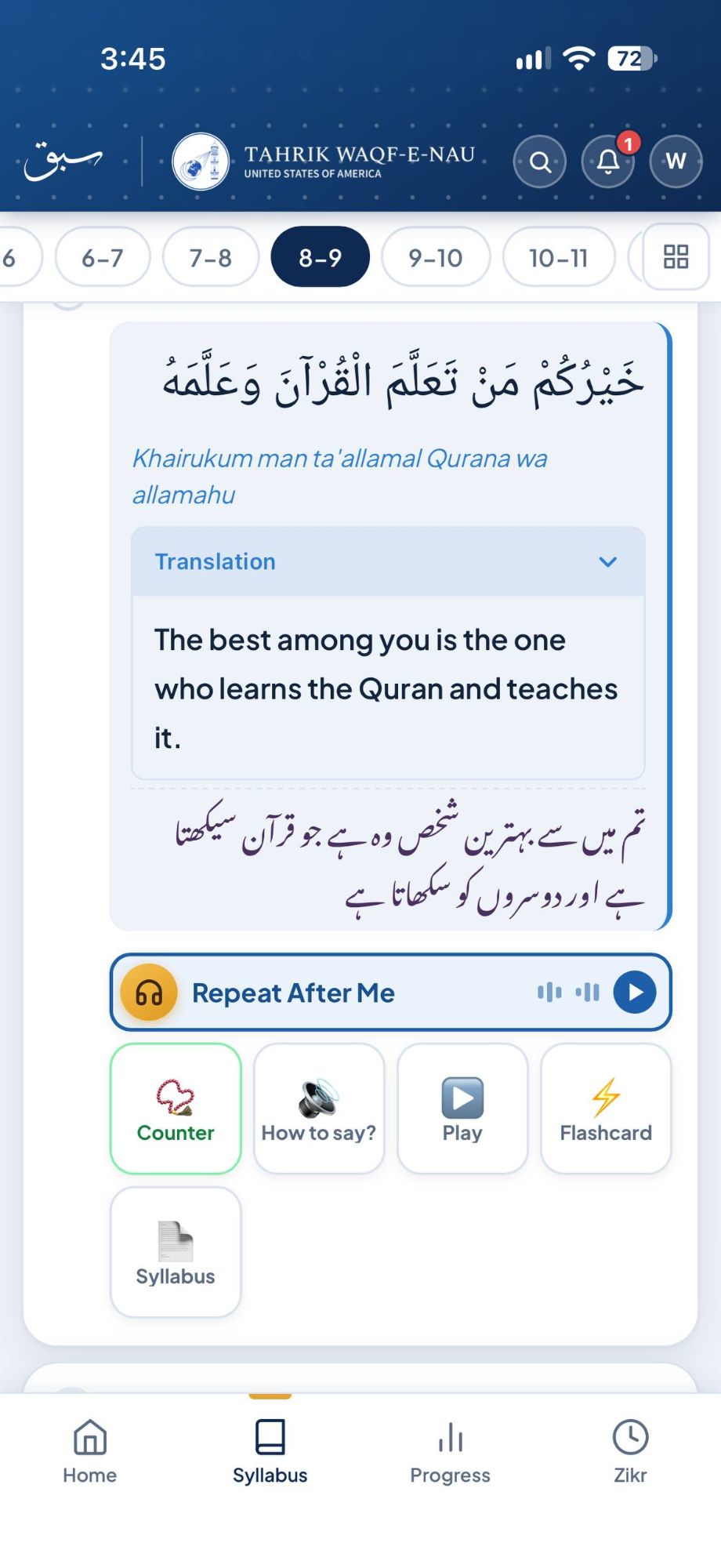
What each button does
The circle on the left of each item. Tap it once you have memorised the item — it turns blue, the item is crossed out and coins pop up (+1 coin, or +2 coins for Quran and Hadith). Tap again to untick. Section and level progress update straight away, and finishing a whole section earns +5 coins.
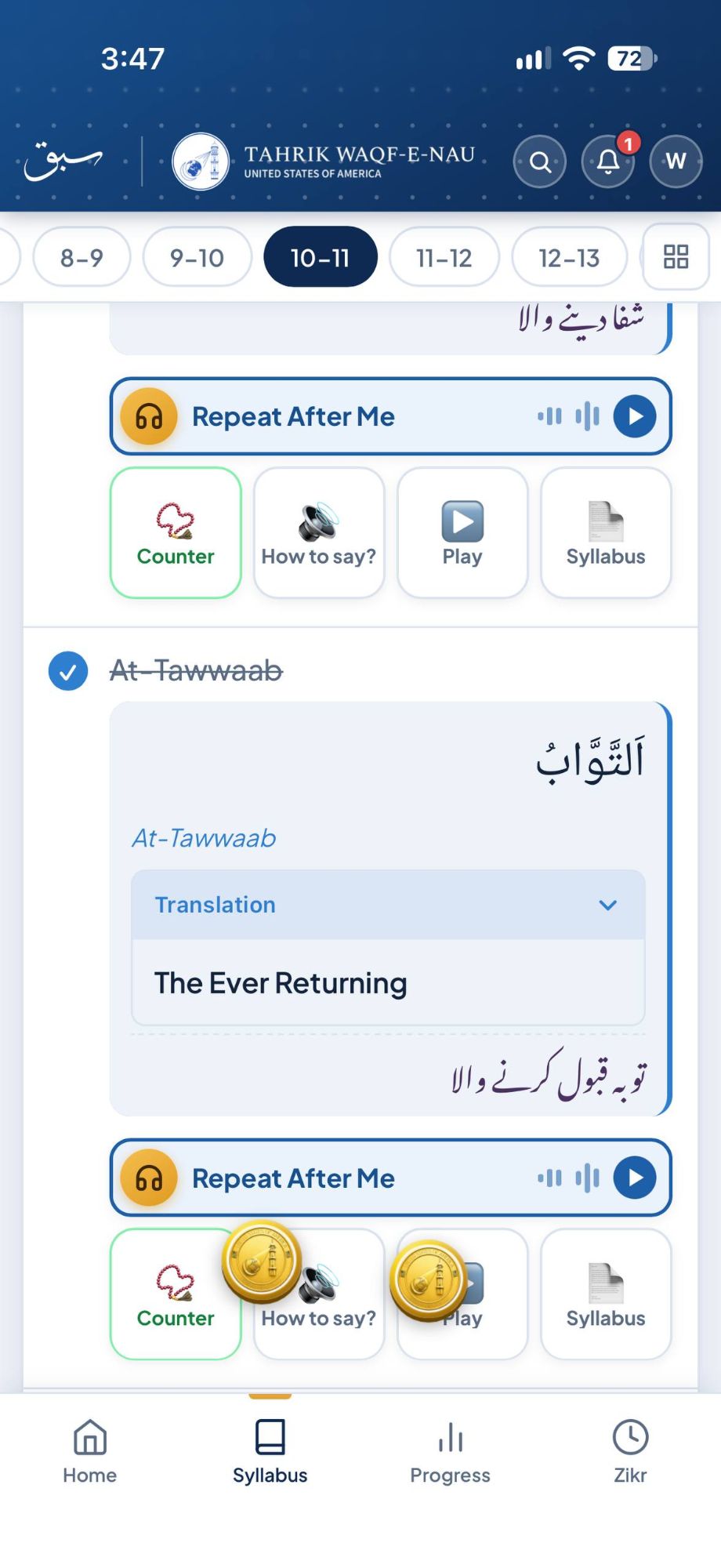 Ticked item
The slow, learn-with-me audio. The item is said phrase by phrase with a pause after each one, so you can repeat it back. Change the speed with 1×, skip 15 seconds back or forward, and tap Repeat to loop it. For a Quran surah it plays verse by verse — choose a verse, or use ‹ Prev and Next ›. The verse translation is hidden at first: tap the gold Show translation button next to the verse list (or turn it on in Settings), and it stays on until you tap Hide translation. Tap ⚡ Flashcard this verse to practise the verse on screen word by word. The Quran ▶️ Play button works the same way. This button used to be called Memorize (and, for a short time, Listen & Repeat).
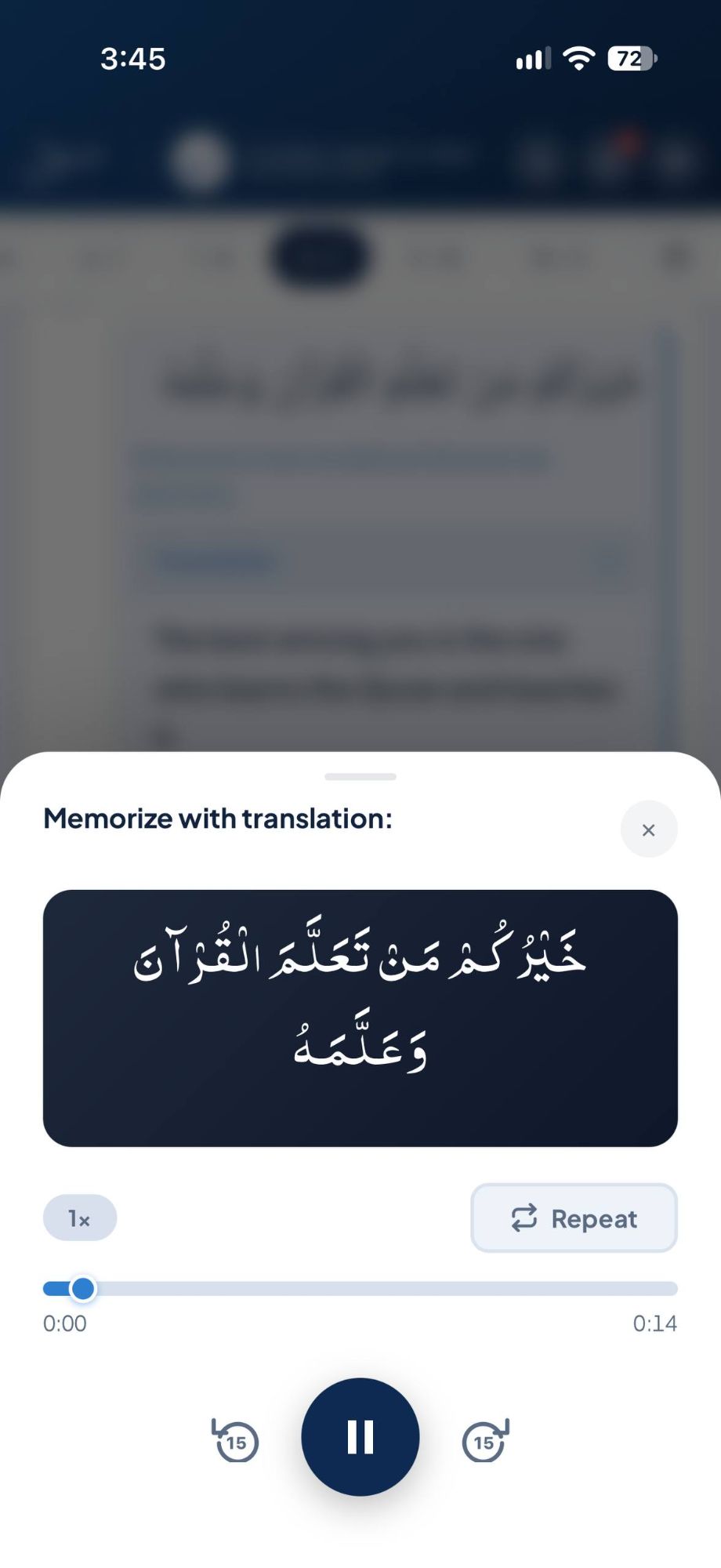 Audio player
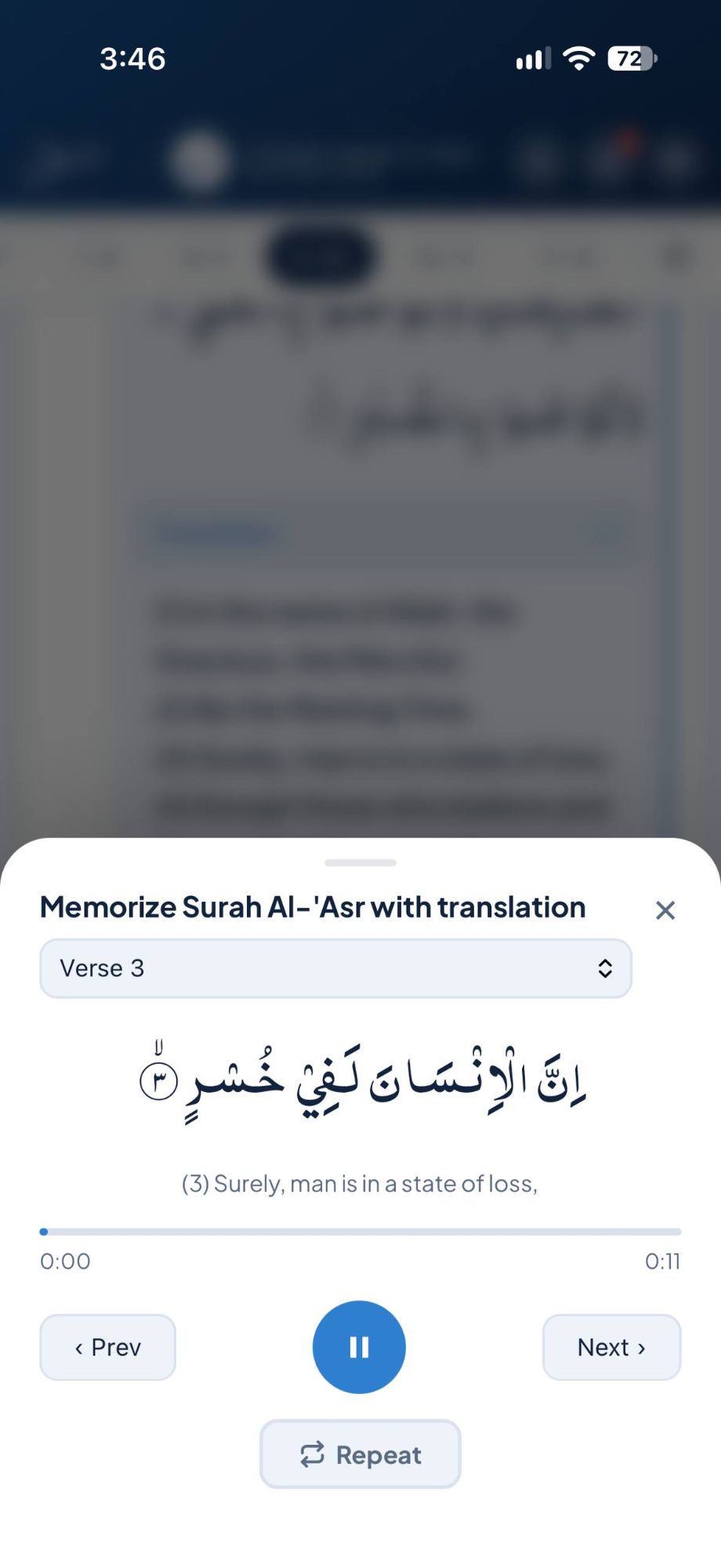 Quran, verse by verse
 Follow Along
Plays the surah's recitation from alislam.org, verse by verse, and highlights each word as it is recited so you can follow along with your finger or eyes. It goes on to the next verse by itself; tap Repeat to keep repeating one verse, or use ‹ Prev, Next › and the verse list. The player shows who is reciting (Tilawat by Maulana Feroz Alam); tap Change next to it, or go to Settings → Follow Along Option, to choose another reciter: Qari Muhammad Ashiq, Mishary Rashid AlAfasy or Aiman Almaliki (remembered on this phone or browser). It needs an internet connection.
A digital counter for recitation practice. The Arabic and transliteration are shown; the translations are hidden until you tap the gold Show translation button next to Reset (remembered on this phone or browser). Tap the big green + for each recitation. Pick a target (3, 7, 33, 99 or 100) and the counter glows when you reach it. Reset starts again from zero.
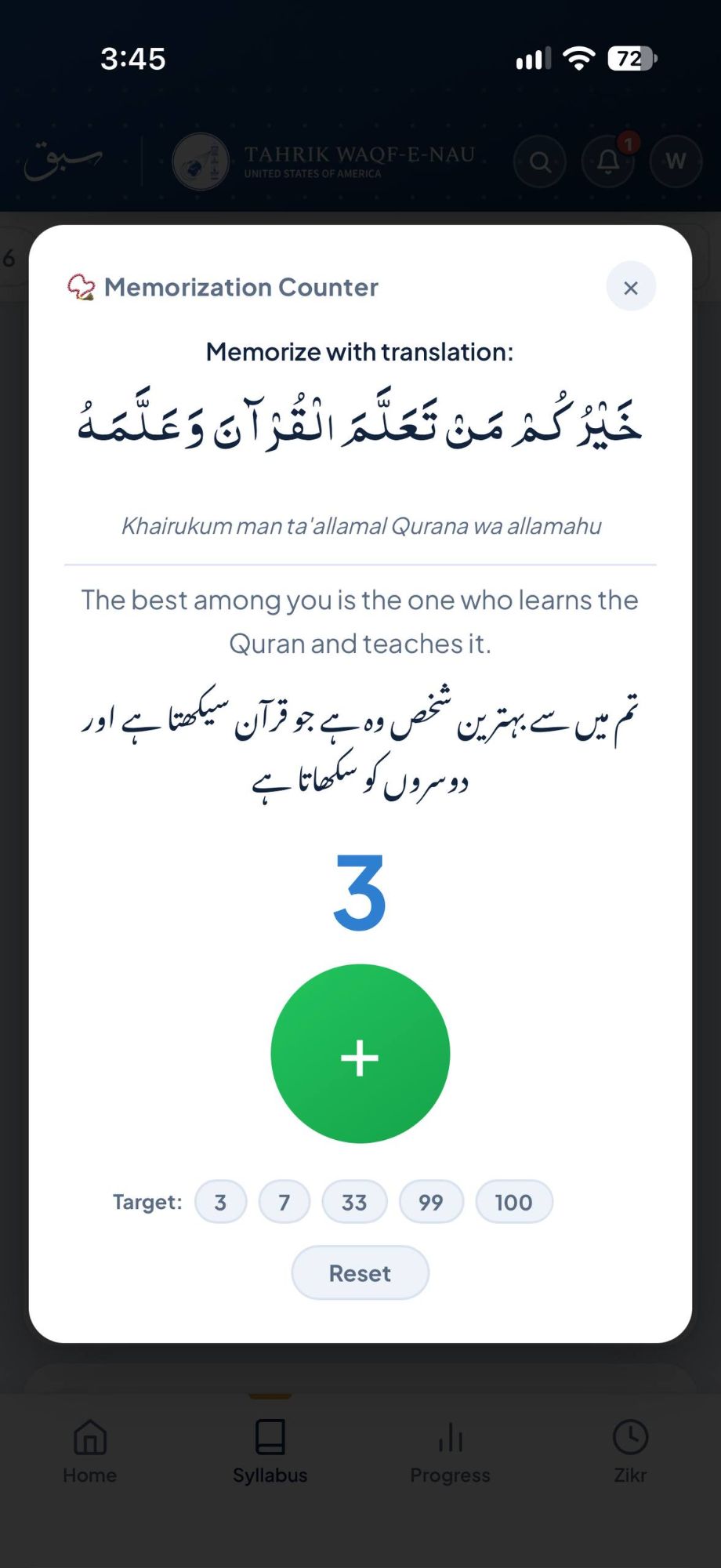 Counter
Shows the Arabic broken into simple English sounds — e.g. Khay-ru-kum man ta-al-la-mal Qur-aa-na wa-al-la-mah. Ideal for children learning correct Arabic pronunciation. These guides are generated by Google Gemini for educational purposes — always verify religious content with a qualified scholar.
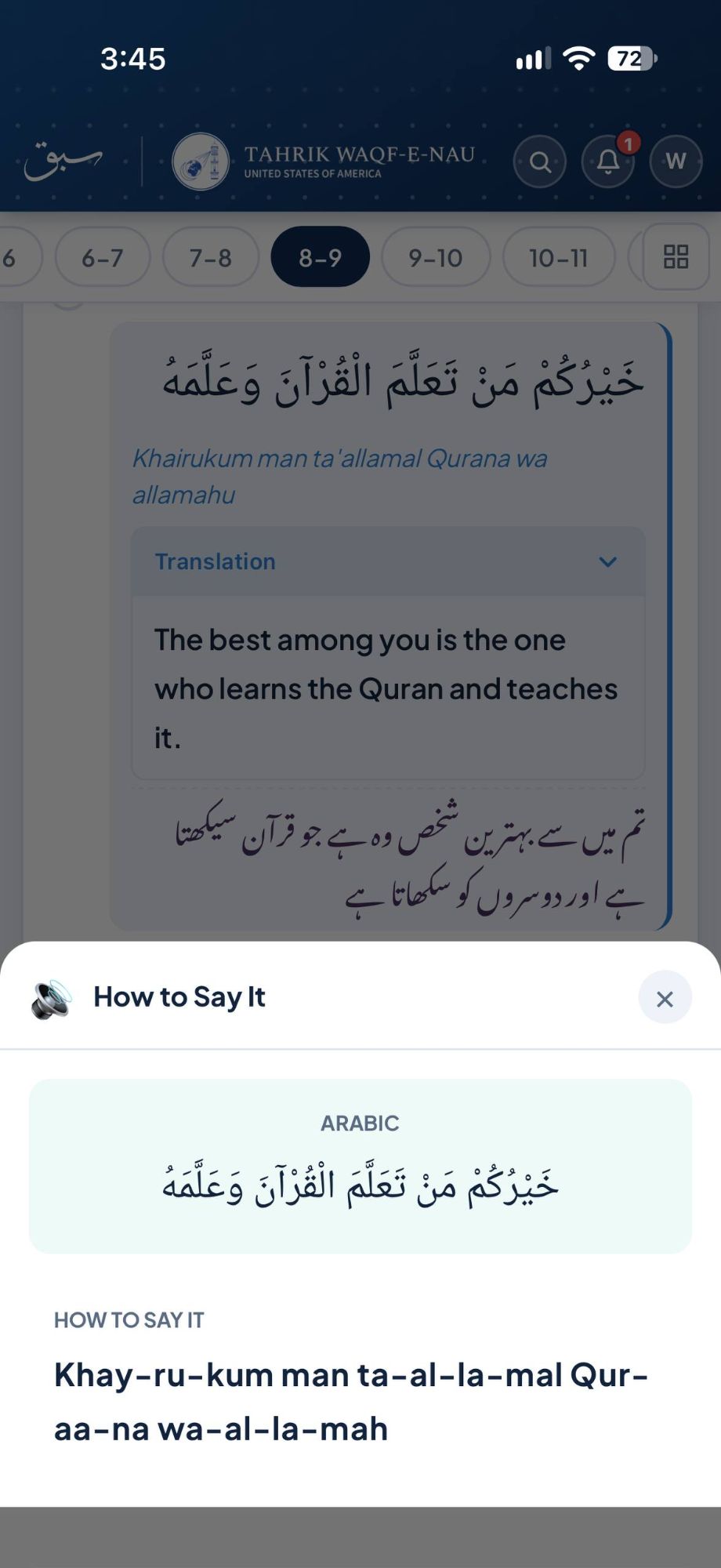 How to Say It
Plays the complete recording of the item at normal speed, without pauses.
Opens a flashcard for just this prayer, dua or Hadith. It starts in Memorize mode: words are hidden — tap Reveal next word to uncover them one at a time, or Show all. Switch to Flash to see the whole Arabic and tap the card to reveal the meaning. Shown on items with Arabic text. For a Quran surah, the Flashcard tile comes after Play and opens one card per verse, with the words revealed one at a time — you can also open it at a particular verse from Repeat After Me or Play. Quran verse cards are for practice; their Again / Almost / Got it answers aren't saved to Flashcard Review. See Section buttons.
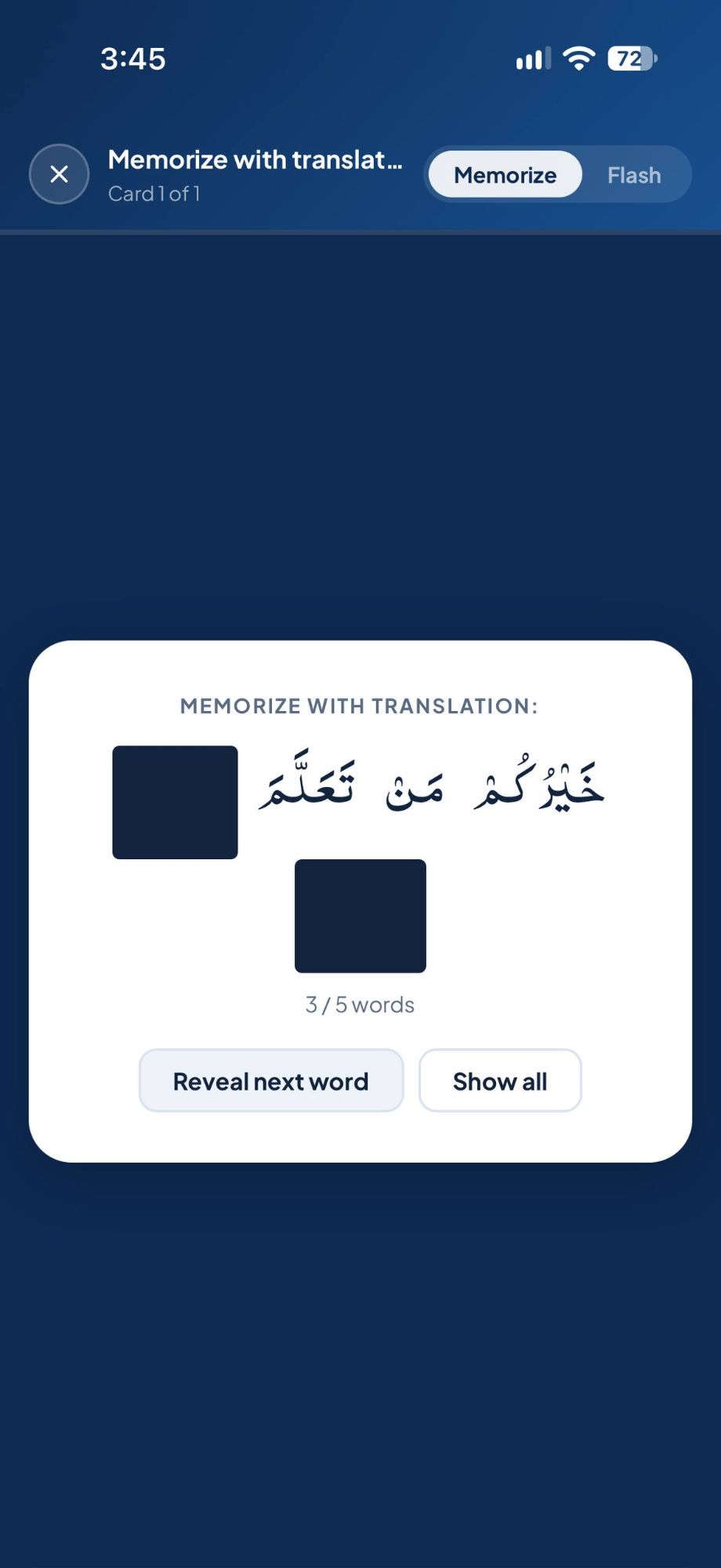 Memorize mode
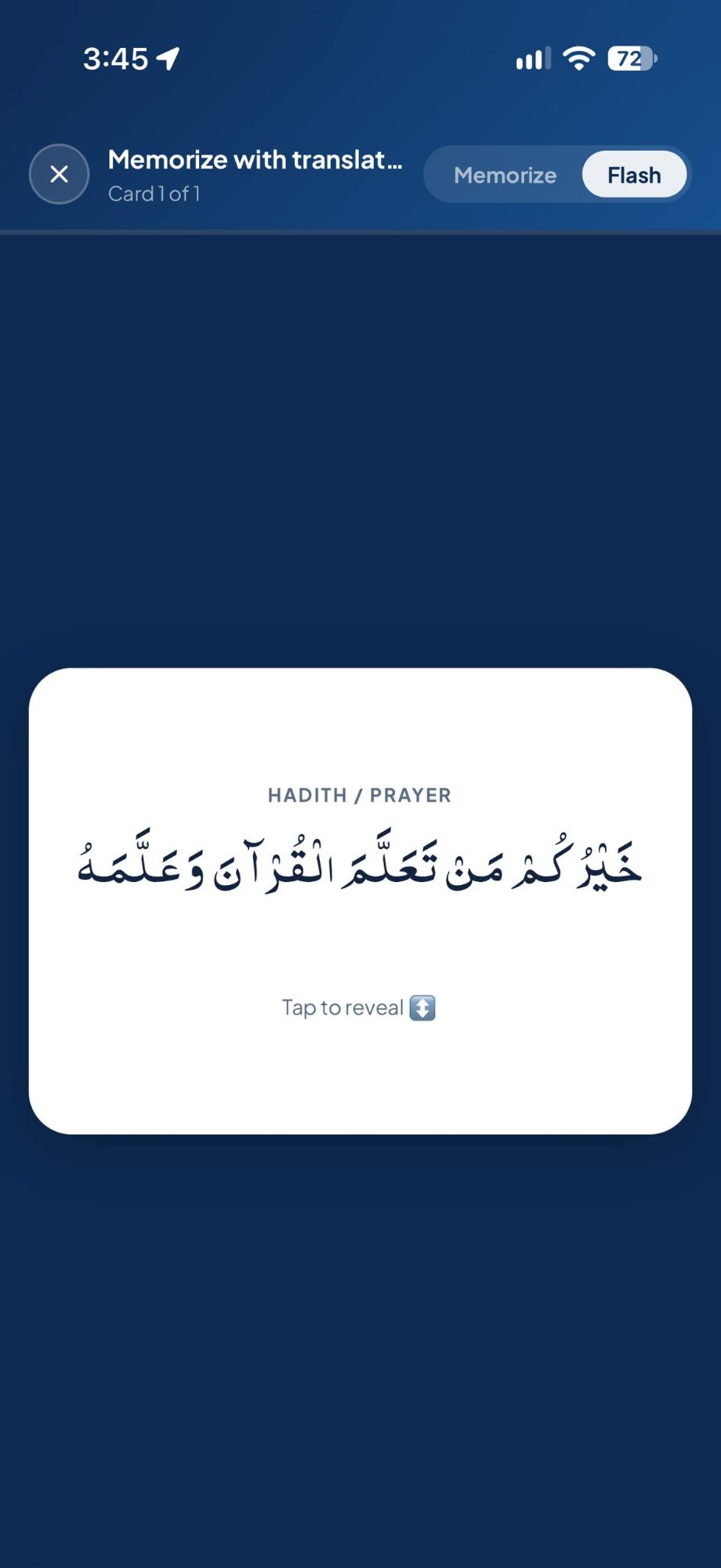 Flash mode
Opens the official Waqf-e-Nau Syllabus PDF at the page for this item. Use the arrows to turn pages, − / + to zoom, and ‹ Back to return.
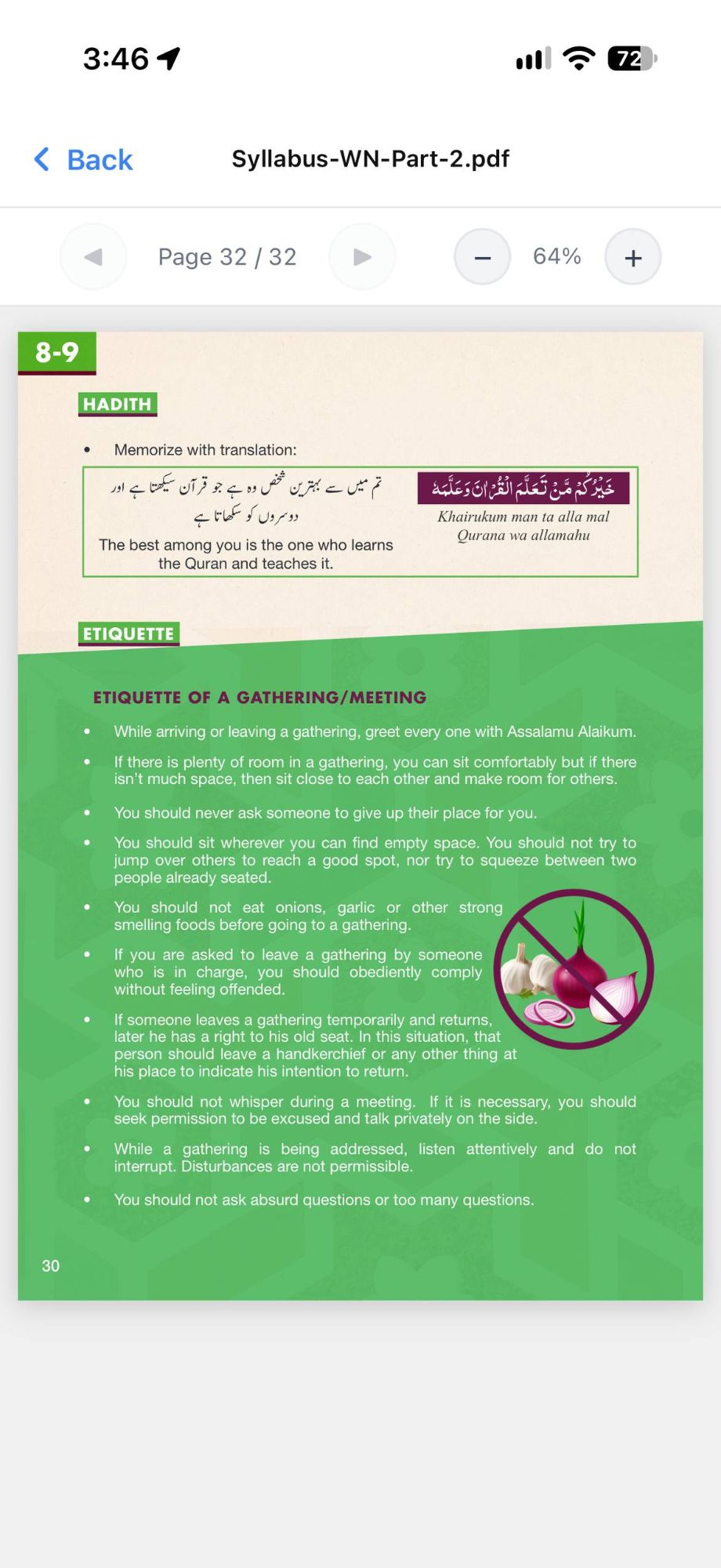 Syllabus PDF
Opens a curated external resource for this item — e.g. a Quran reference on https://alislam.org/quran/app/, an alislam.org article, or a relevant learning page.
Section-level buttons
When a section is open, these buttons appear at its top.
Ticks every item in the section in one tap — useful when you've already memorised everything and want to record it quickly. Changed your mind? Tap Undo in the message that appears (see the Syllabus tab picture above).
Practice the whole section as a deck of flashcards — or tick just a few items first to make a smaller deck. Opens in Memorize mode (words hidden one by one); switch to Flash mode using the buttons at the top right to see the full card. Swipe or use the arrows to move between cards; Card 1 of 5 shows your place in the deck.
A short multiple-choice quiz (3–10 questions) on the section. You see which answers were right straight away, and you can take it as often as you like. Score 90%+ to earn +1 coin.
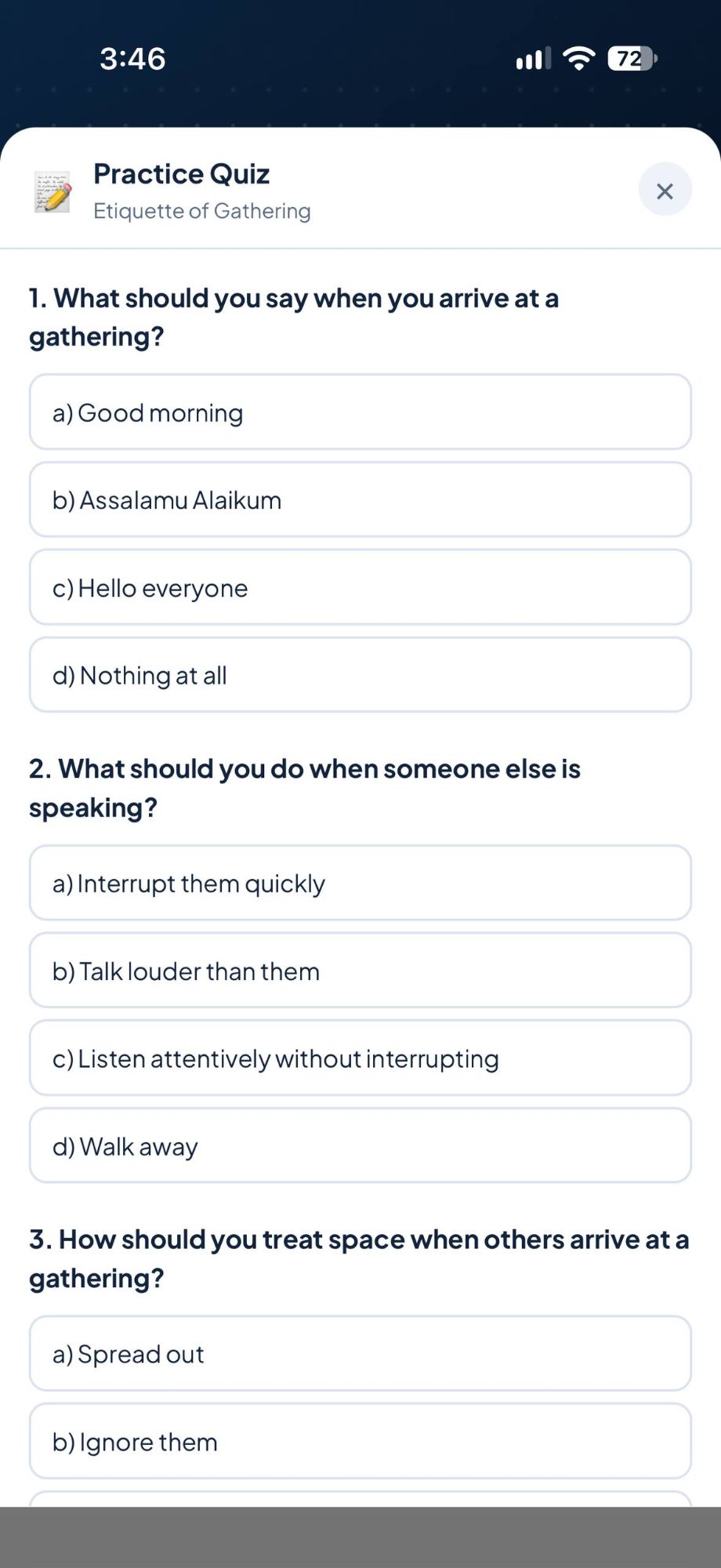 Practice Quiz
Available for sections with Arabic terms and meanings. Tap an Arabic term, then tap its English meaning to match them — a correct pair turns green, a wrong pair shakes red. Score 90%+ to earn +1 coin.
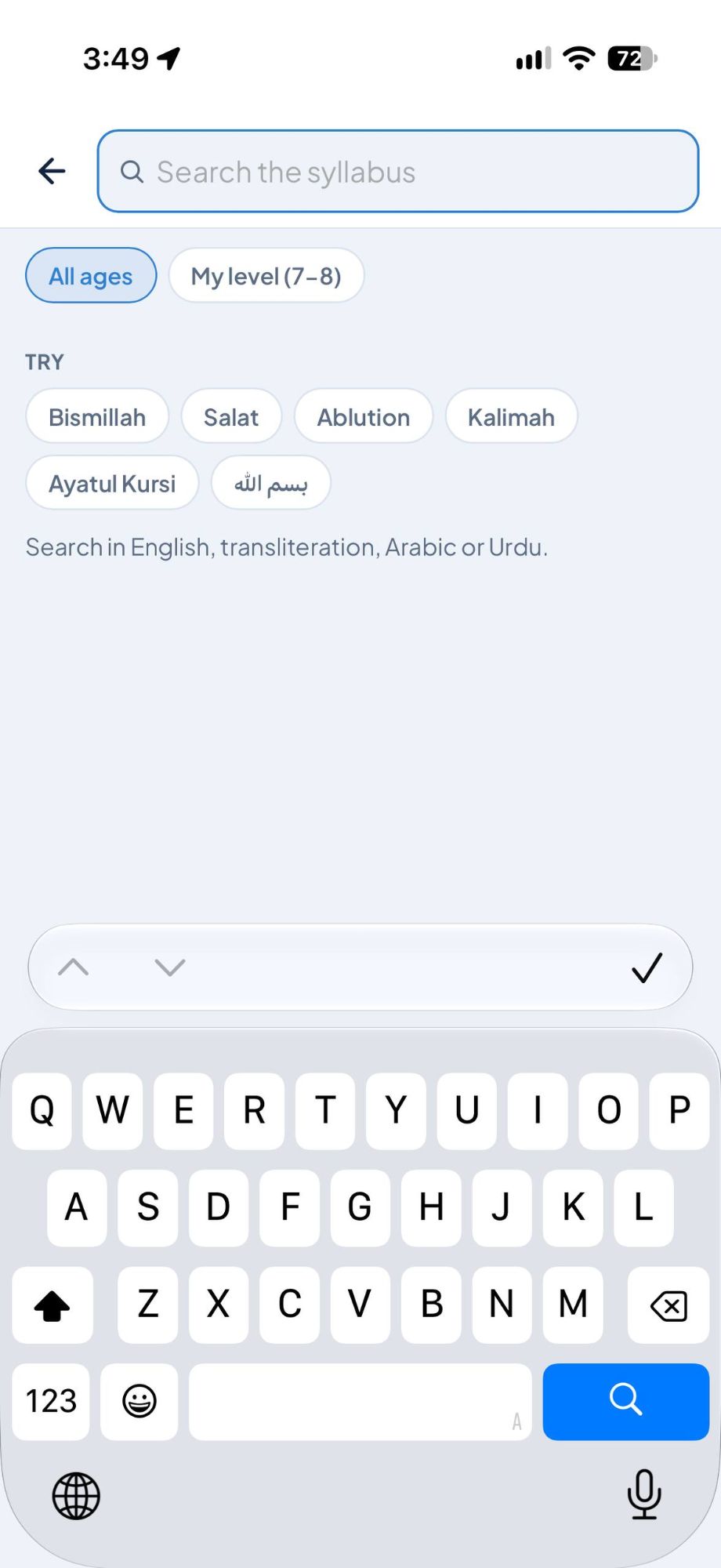
Search the Syllabus
Looking for a prayer, a surah or a topic but not sure which age group it's in? Search finds it across the whole syllabus.
- 1Tap the magnifying glass at the top right of the screen.
- 2Type a word or two — for example Bismillah, Salat or Ayatul Kursi. Results appear as you type.
- 3Tap a result to jump straight to that item in the syllabus. It glows for a moment so you can spot it.
Alerts & Reminders
The bell at the top right collects messages from Waqf-e-Nau USA — such as exam dates or new audio — and gentle reminders to keep you on track. A red number on the bell shows how many you haven't read yet.
- 1Tap the 🔔 bell to see your alerts. Unread ones are highlighted with a blue dot. Messages from Waqf-e-Nau USA have an orange megaphone; reminders have their own icon (📿 Zikr, 🎧 new content).
- 2Tap an alert to read it. If it points somewhere — Daily Zikr, an age group, Help or a web page — it takes you there.
- 3Tap Mark all read to clear the red number.
Some messages come back every week — for example, on Friday evening a reminder asks whether you have listened to the Friday Sermon of beloved Huzoor (aba). Tap it to open the latest sermon on alislam.org. It shows as new again each week.
Daily Zikr
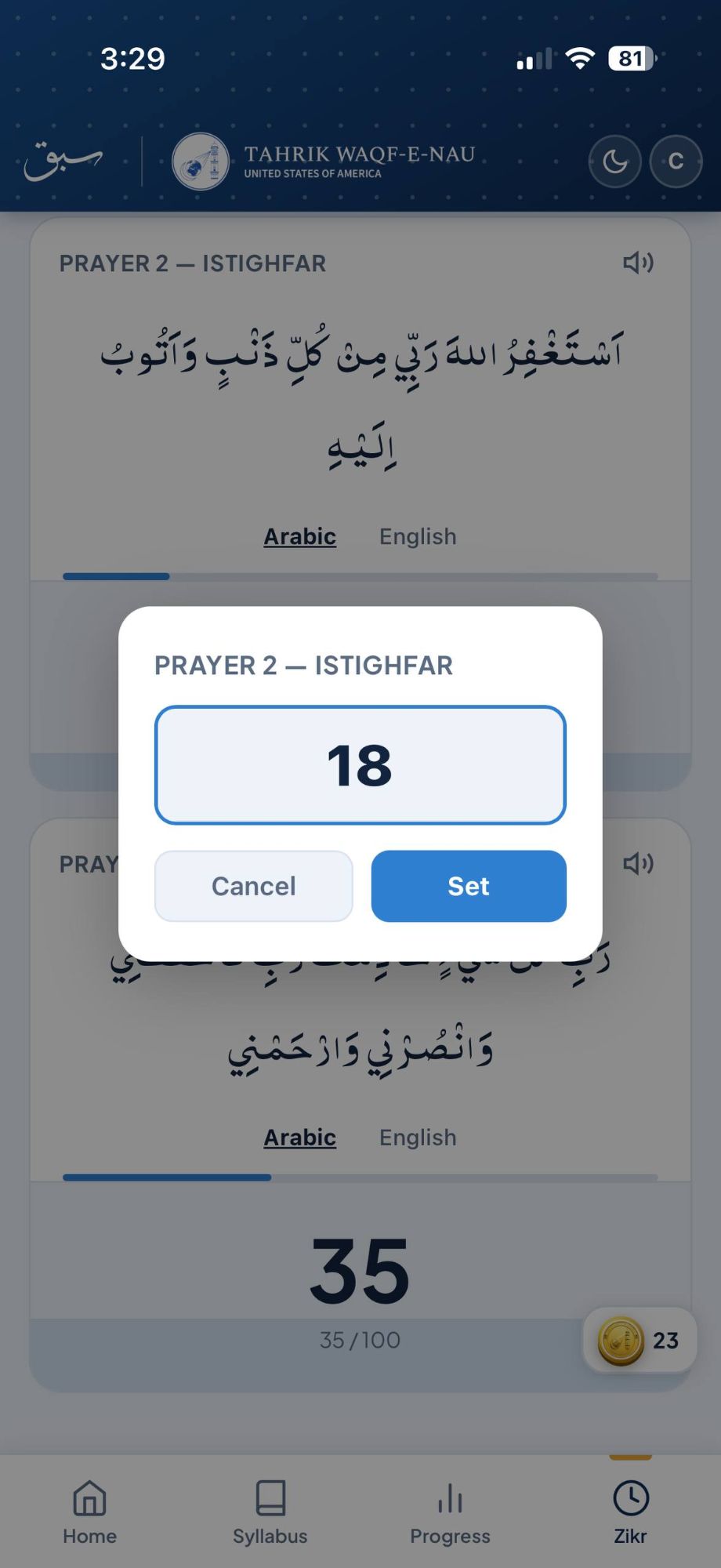
The Zikr tab helps you track your daily recitation of the three prayers instructed by Huzoor (aba). Tap the card for each prayer to count your recitations — and earn Sabaq Coins as you hit milestones.
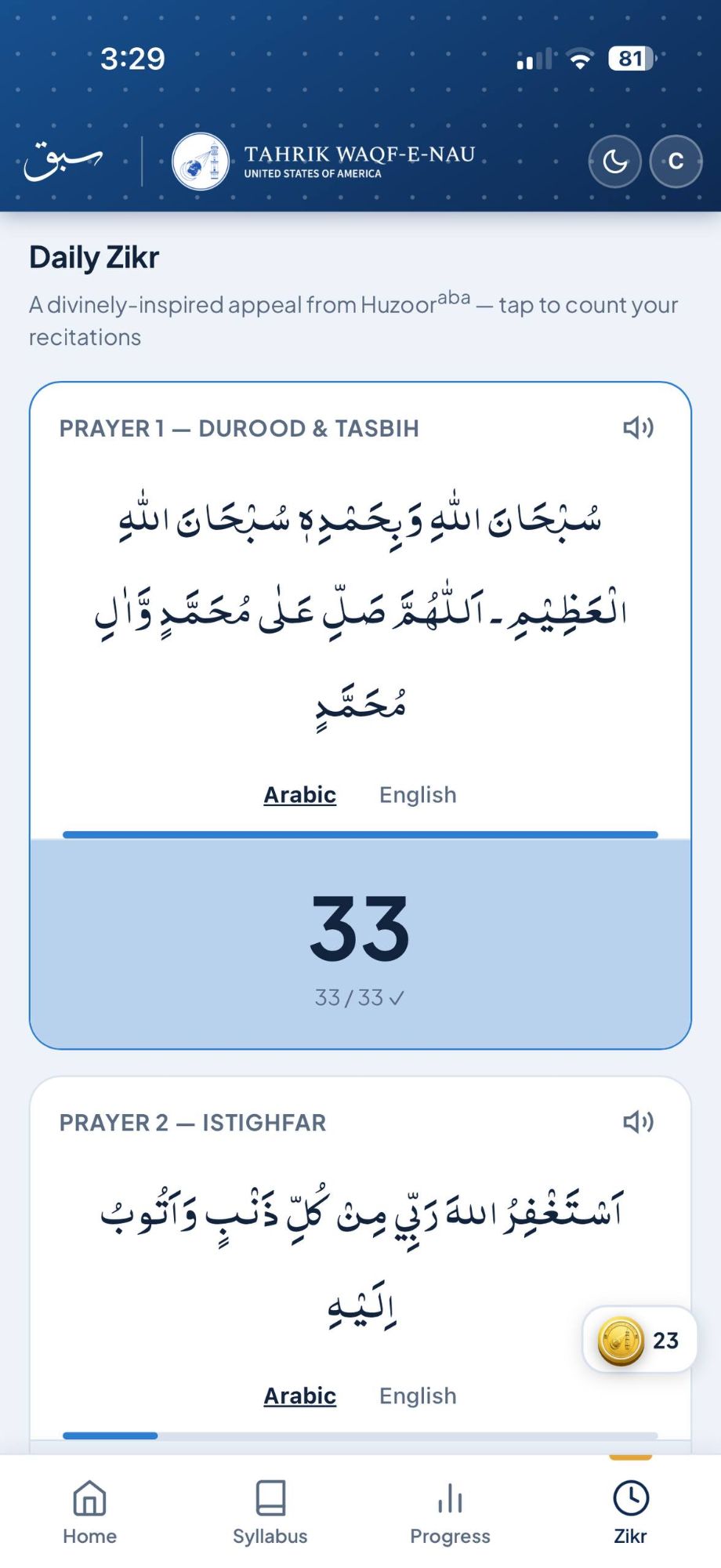
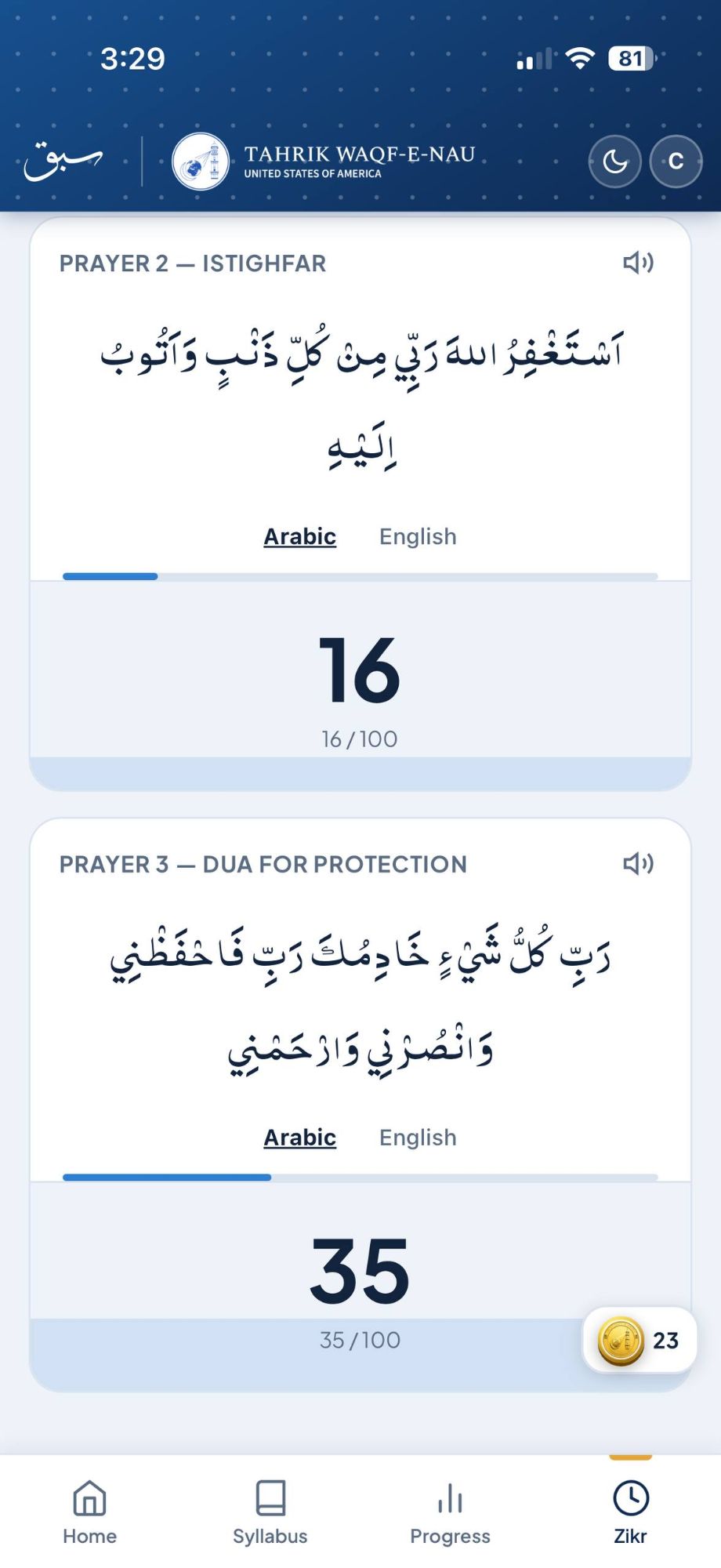
The Three Daily Prayers
How to Use
-
1Tap the Zikr tab at the bottom of the screen to open your daily counter.
-
2Tap anywhere on a prayer card to add one recitation. The count and fill bar update instantly. Each prayer resets to zero at midnight.
-
3Long-press a card to open the manual entry dialog — type in a number directly if you've already recited offline and want to log the total at once.
-
4Switch between Arabic and English tabs on each card to read the prayer text in your preferred language.
-
5Tap the speaker icon (top-right of each card) to play the audio recitation if one has been set by the administrator.
Zikr on the Home Screen
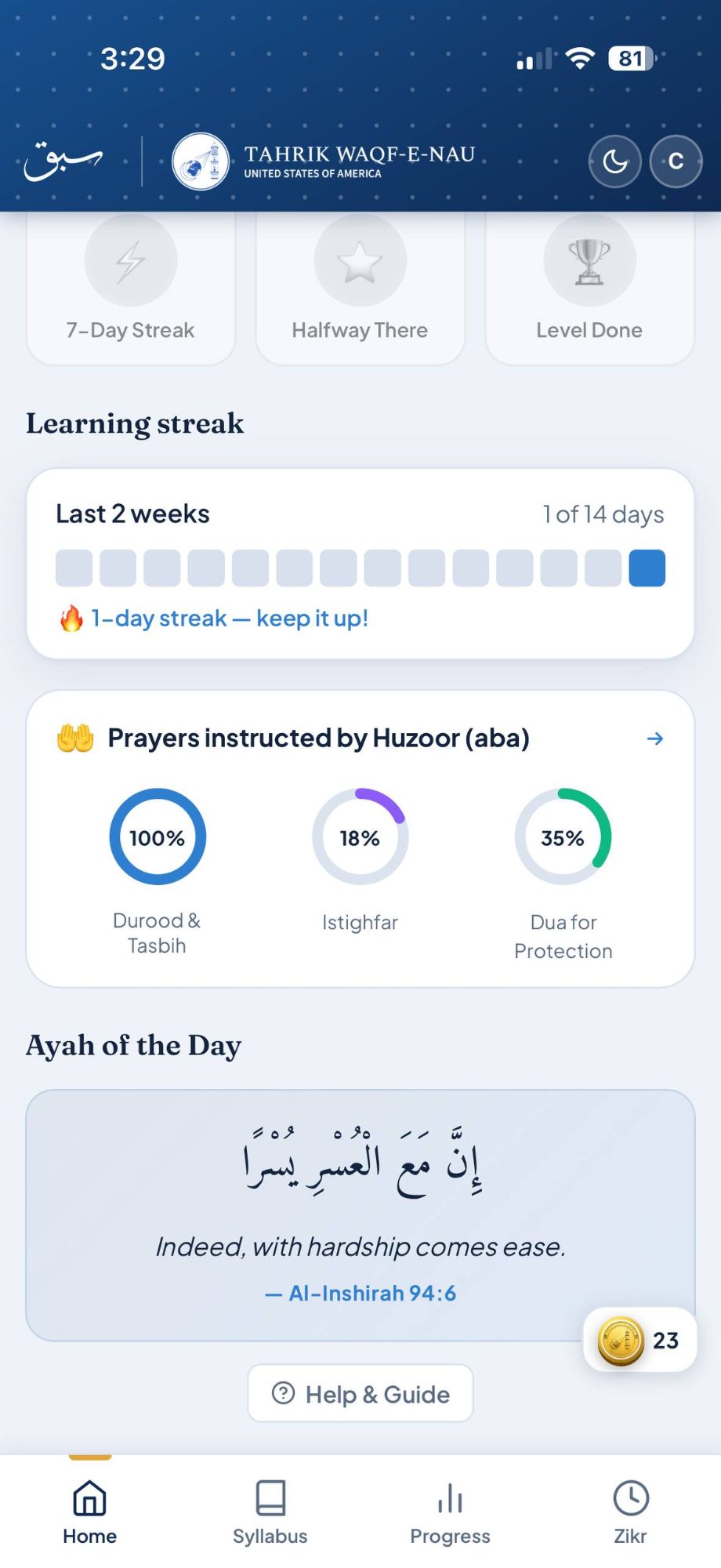
Your Home page shows three progress circles — one for each prayer — so you can see today's Zikr at a glance without switching tabs. Tap the → arrow on the Zikr card to go directly to the counter.
Earning Coins from Zikr
Coins are awarded once per prayer per day at each milestone. A burst animation and chime play when coins are earned.
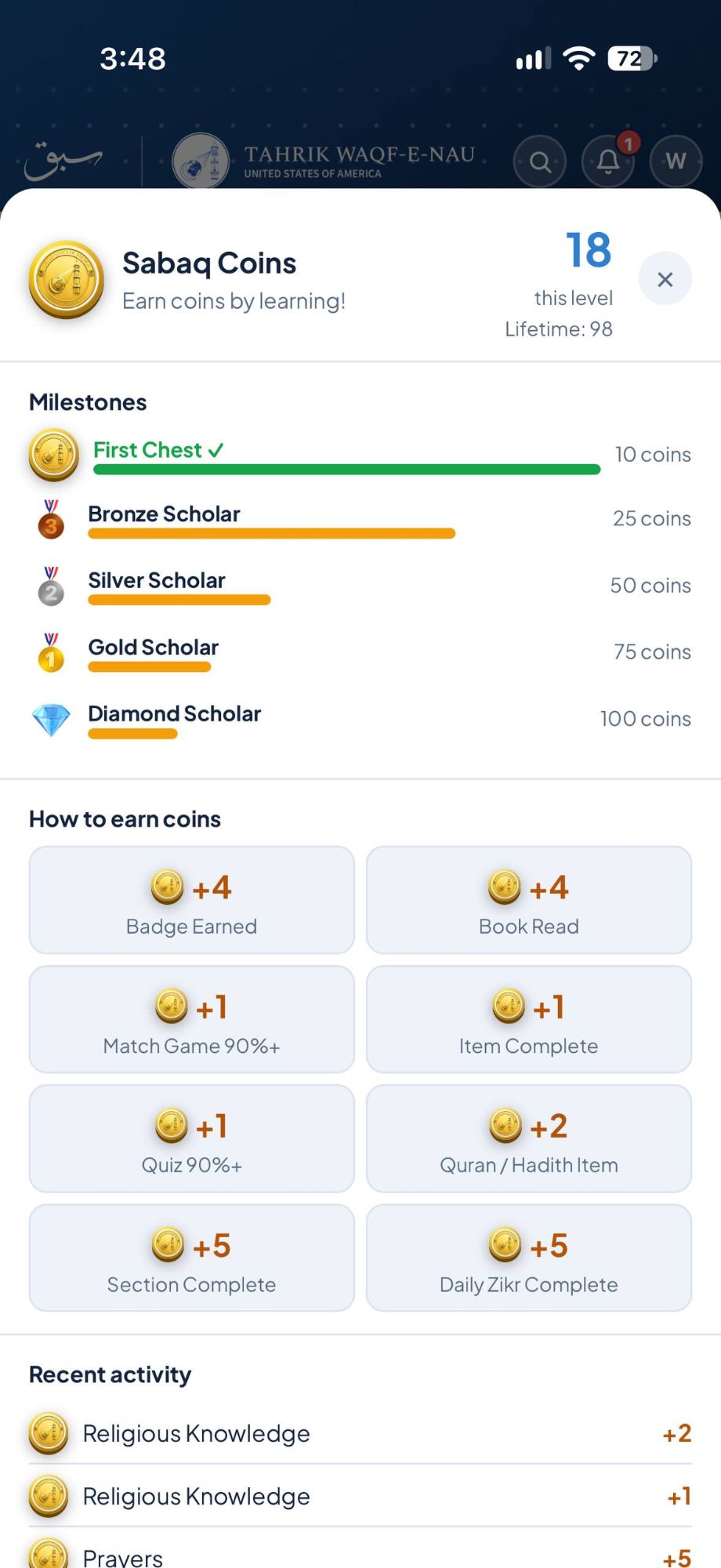
Sabaq Coins
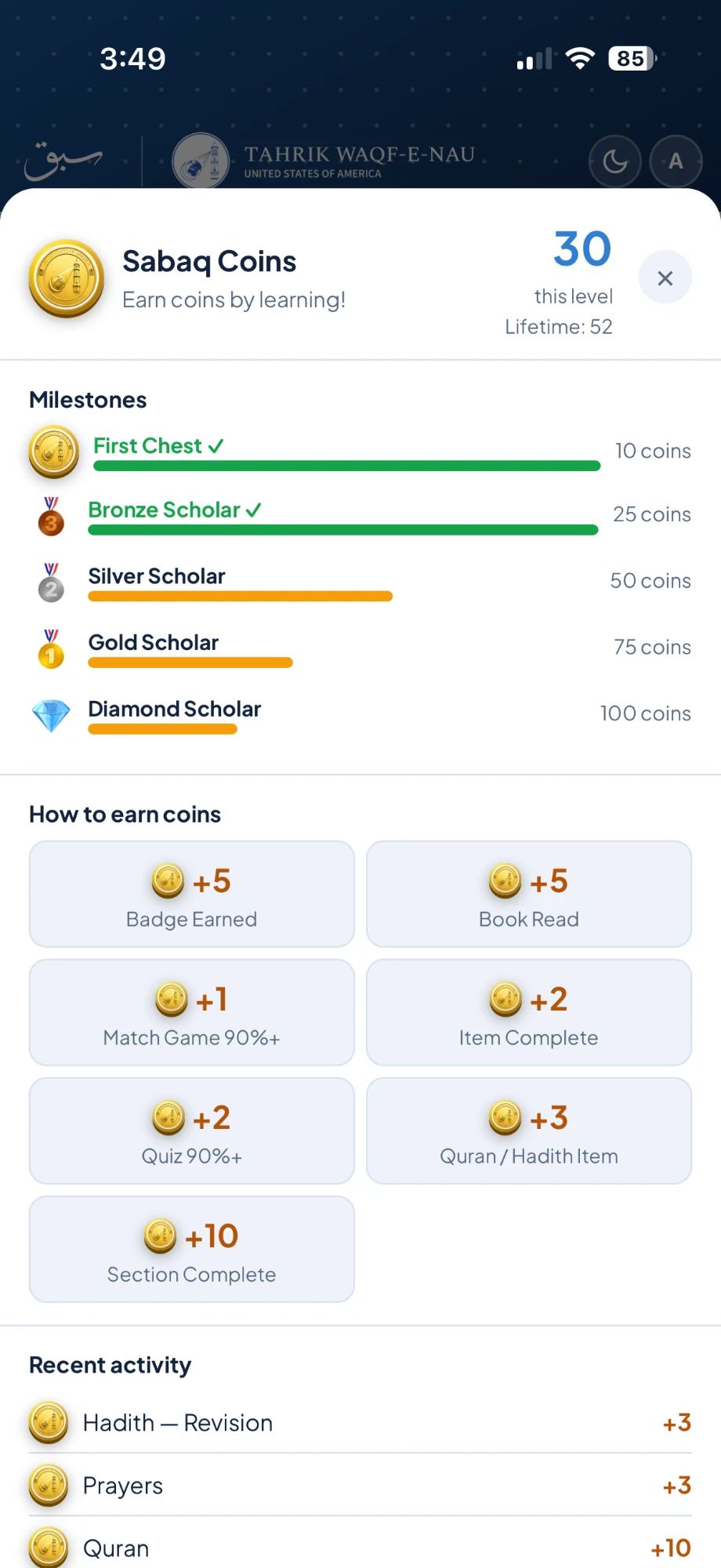
Earn Sabaq Coins as you learn. Coins are counted per level — so each age group has its own tally. Everything you earn goes to your current level, even when you tick an item in another age group. Tap the gold coin badge on any screen to open your Coins chest.
Scholar Milestones:
Avatar / Right Menu
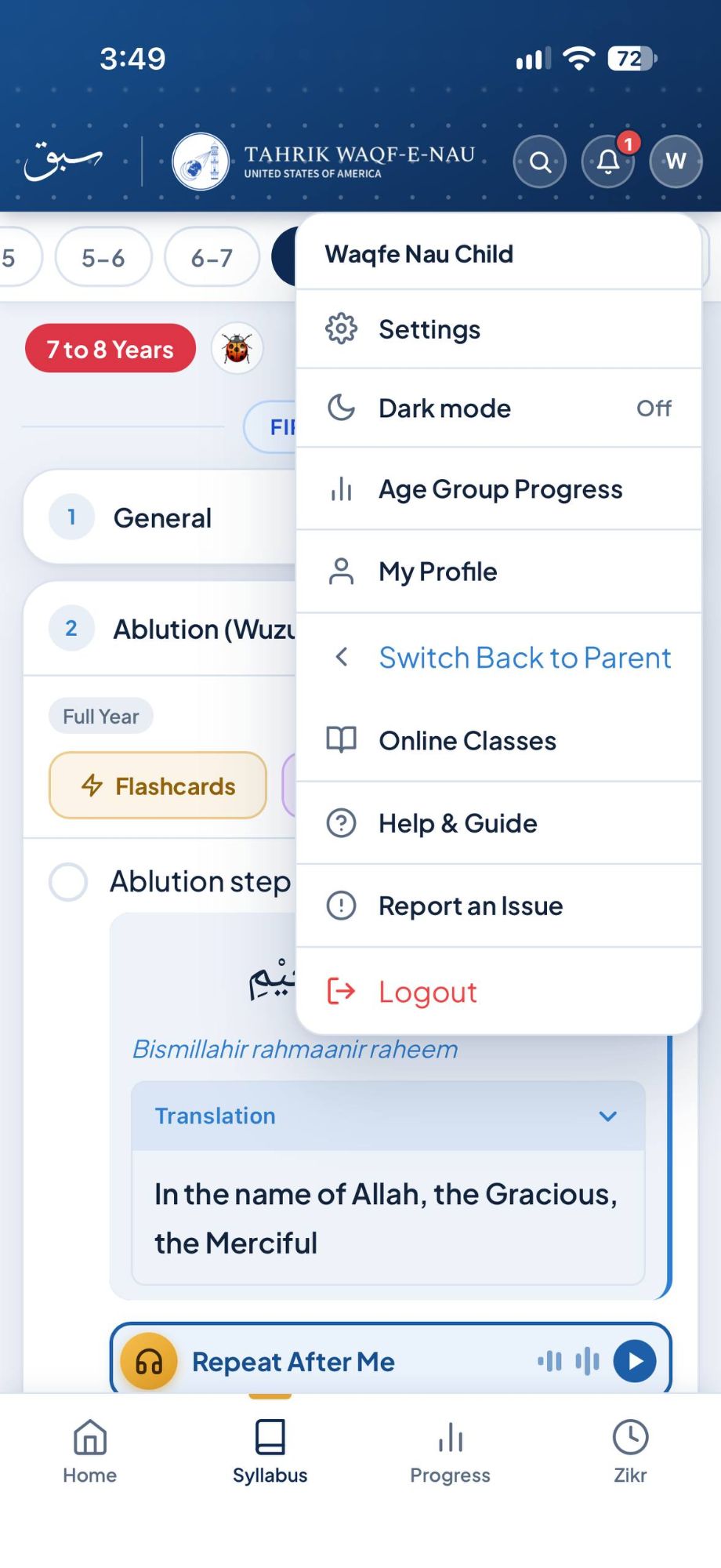
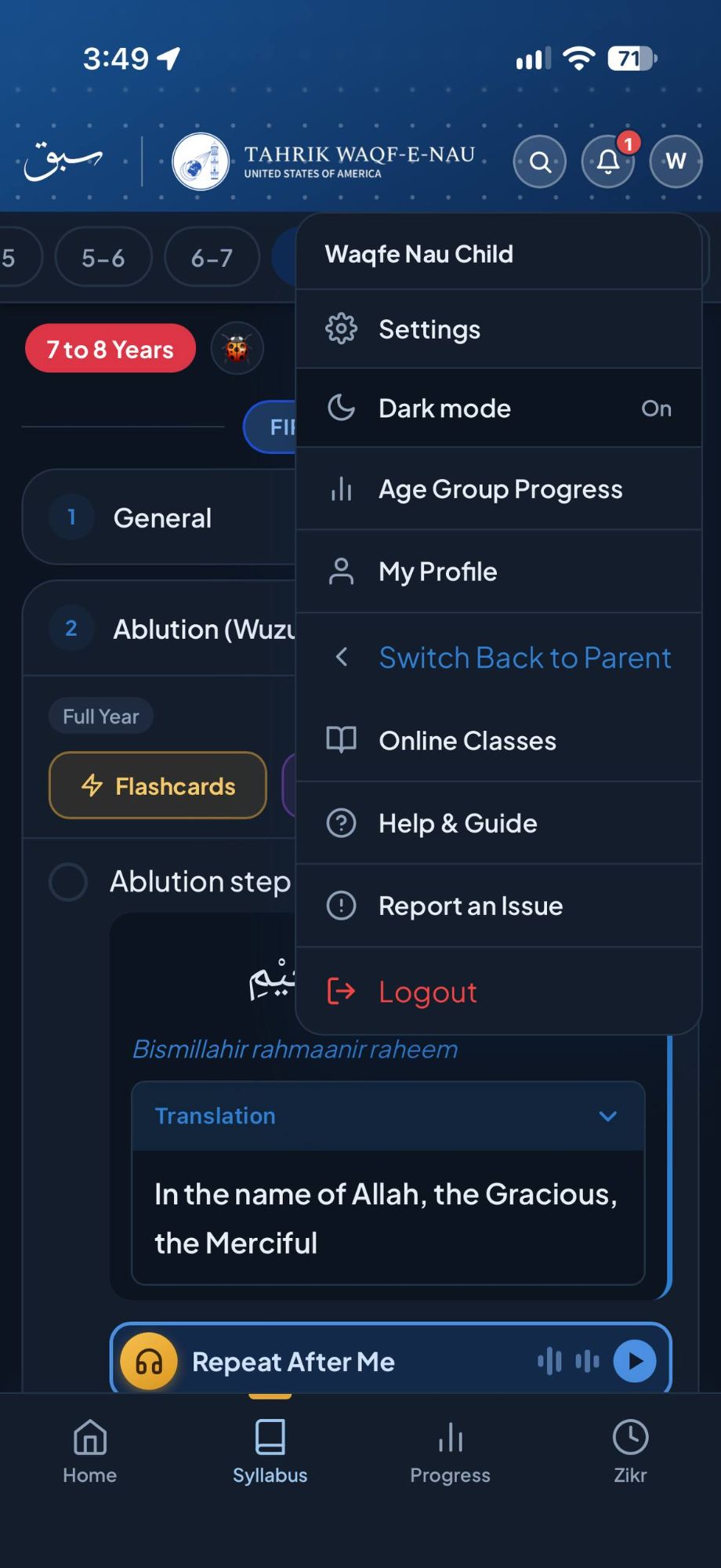
The top right of every screen has three buttons: 🔍 Search, the 🔔 bell and your avatar (your first initial). Tap the avatar to open the menu.
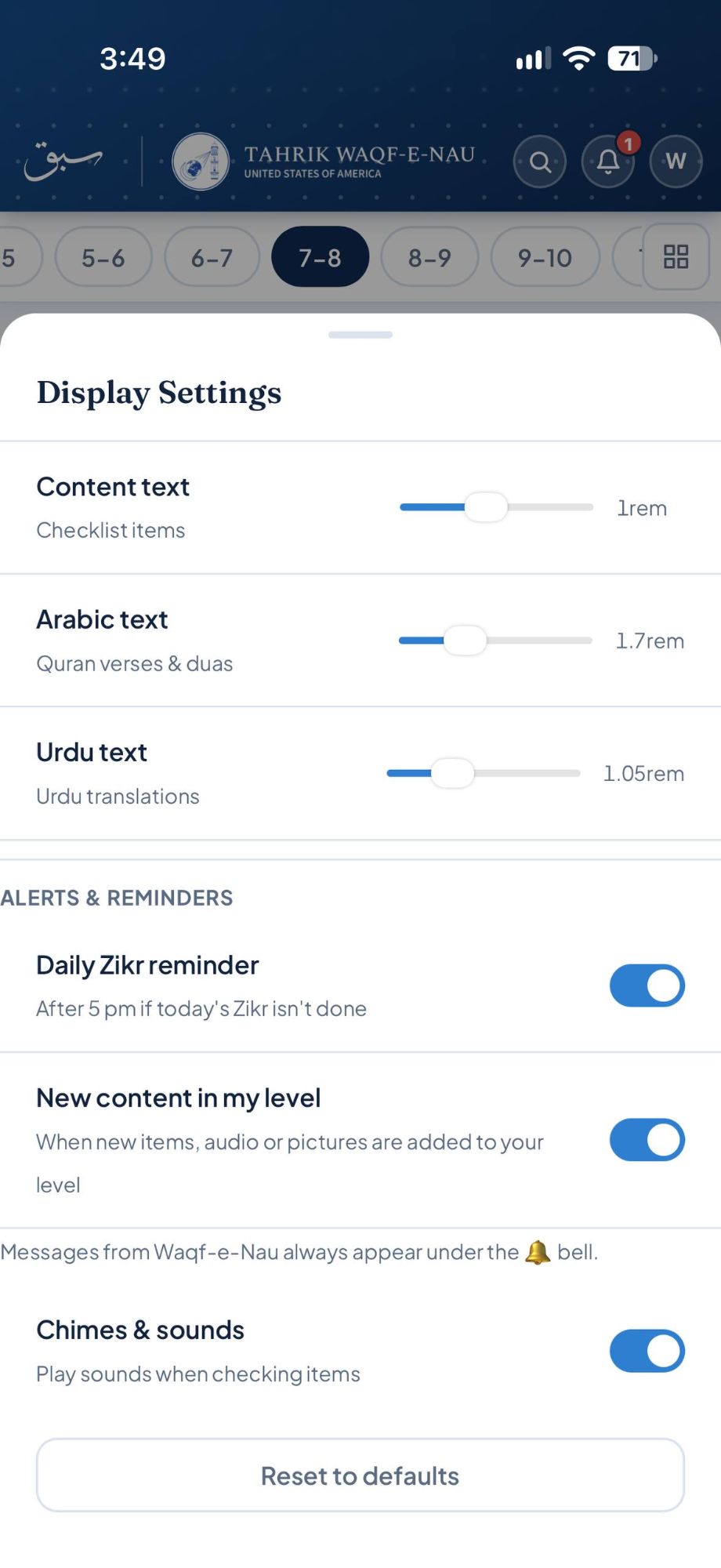
Top right buttons
Menu items
Report a Problem
Spotted a mistake in the syllabus, audio that won't play, or something that isn't working? Tell us right from the app — it goes straight to the Sabaq team.
- 1Describe what's wrong — for example which item, what you expected, and what happened.
- 2Tap Send. You'll see a confirmation that we've received it.
Installing as an App
Sabaq is available on the Google Play Store for Android and the Apple App Store for iPhone and iPad. You can also add it to your home screen directly from the browser.


Or install from browser
- 1Open Sabaq in Safari (must be Safari, not Chrome).
- 2Tap the Share icon — the box with an arrow pointing up at the bottom of Safari.
- 3Scroll down and tap Add to Home Screen.
- 4Tap Add — the Sabaq icon appears on your home screen.
- 1Open Sabaq in Chrome.
- 2Tap the ⋮ menu (three dots, top-right).
- 3Tap Add to Home screen and then Add.
Privacy & Your Data
Sabaq collects only the information needed to run your account and track your syllabus progress — your name, AMC Member Code, email address, and in-app activity such as completed items, practice counts, and earned Sabaq Coins. This data is used solely to provide the app's features and is never sold or shared with third parties.
Your data is stored securely and is accessible only to you and authorised Waqf-e-Nau administrators for the purpose of managing the programme.
Why we ask for birth year: it is used only to work out which syllabus level a child or student should be in, and to show a child's age to their parent on the Home screen and to Waqf-e-Nau administrators. It is not used for anything else.
For privacy questions or concerns, contact us at waqfenau.us/contact-us.
Delete Your Account
You can permanently delete your Sabaq account and all of its data yourself, in the app or on the website — no need to contact us.
-
1Sign in and tap your avatar (your initial, top right) → My Profile.
-
2Scroll down to the Danger Zone section and tap Delete My Account.
-
3Type
DELETEto confirm. Your account is deleted immediately.
Can't sign in? Reset your password with Forgot password? on the sign-in page, or ask us to delete your account at waqfenau.us/contact-us.